Deutsche Theme Dokumentation
Ari ist ein leichtes, minimalistisches Blog-Theme, das für die Ansicht auf unterschiedlichen Bildschirmgrößen sowie mobilen Geräten wie Tablet-PCs und Smartphones optimiert ist. Die Hintergrund-, Text- und Link-Farben kannst du in den Theme-Optionen selbst anpassen, und auch das Einfügen eines eigenen Logos ist über die Theme-Optionen möglich. So musst du nicht mehr viele Einstellungen vornehmen, um schnell los bloggen zu können und deine Leser können deinen Blog auch bequem von unterwegs auf ihrem Tablet-PC oder Smartphones lesen.
Live-Demo und Download:
Das Ari Theme im Überblick
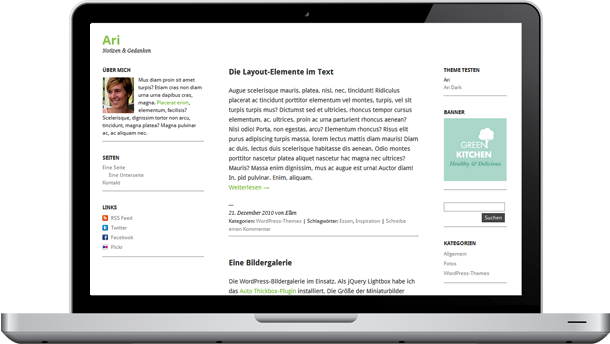
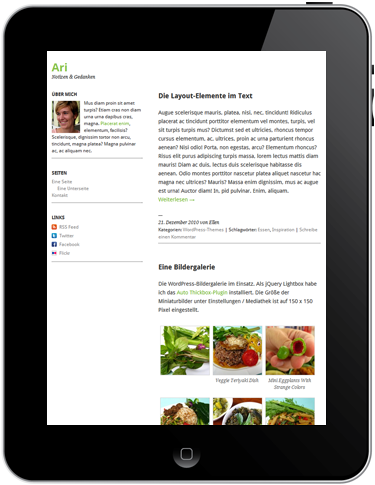
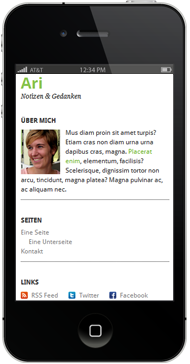
Dreispaltige Ansicht im Desktop-Browser, zweispaltig im iPad Hochformat und einspaltig auf dem iPhone oder anderen Smartphones.
Die Theme-Features
- minimalistisches Blog-Layout
- CSS3 Media Queries, vorbereitet für die Ansicht auf iPads, iPhones und anderen mobilen Geräten (das Layout wechselt von einer Dreispaltigkeit, auf eine zwei- und einspaltige Ansicht)
- Theme-Optionen im Adminbereich (individuelle Hintergrund-Farbe, Linkfarben und Textfarbe angeben und Bild als Logo einfügen)
- dunkle Version des Themes über die Theme-Optionen wählbar (besonders für Fotos geeignet)
- Social Links Sidebar-Widget mit Mini-Icons (RSS, Twitter, Facebook, Flickr, Xing, LinkedIn, Delicious)
- für Übersetzung vorbereitet (derzeit in Deutsch und Englisch übersetzt)
- verschachtelte Kommentare aktiviert
- vorbereitete CSS-Styles für das Contact Form 7 Kontaktformular-Plugin
- Verwendung der Droid Sans und Droid Serif Google Fonts
Lizenz-Hinweis: Das Theme ist unter der GPLv2-Lizenz (oder später) veröffentlicht. Weitere Infos findest du auf der Webseite www.gnu.org.
1. Die Theme-Optionen
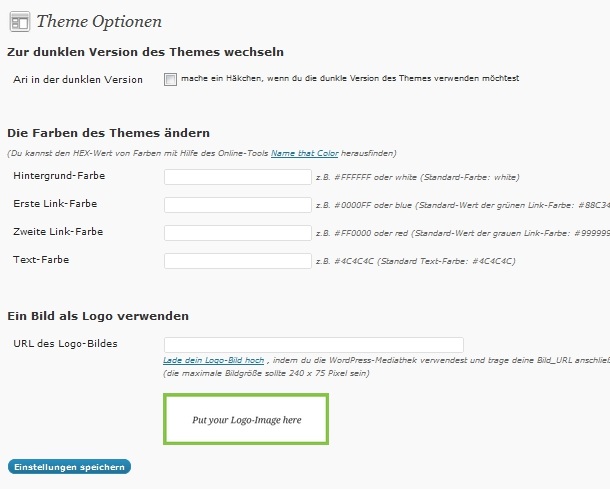
Bei Ari hast du die Möglichkeit deine eigenen Farben für den Blog-Hintergrund, die Link-Farben und die Textfarbe zu verwenden. Außerdem kannst du auch ein Bild für dein Blog-Logo verwenden. Diese Theme-Optionen kannst du bequem auf einer extra eingerichteten Theme-Optionen Seiten (unter Design / Theme-Optionen im WordPress-Admin) eintragen.
Dunkle Theme-Version
Über die Theme-Optionen kannst du auch eine dunkle Theme-Variante von Ari auswählen. Dazu wählst du einfach das Häkchen bei „Zur dunklen Version des Themes wechseln“ an und bestätigst deine Eingabe. Die Link- und Text-Farben kannst du natürlich weiterhin anpassen.
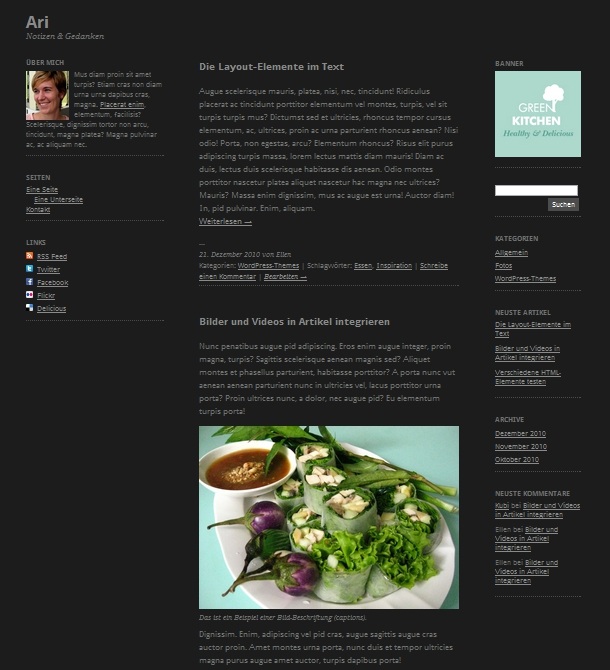
Eine Live-Demo der dunklen Theme-Option kannst du dir ansehen, indem du auf Theme Testseite ari.elmastudio.de in der rechten Sidebar ganz oben unter „Theme testen“ die Ari Dark-Version auswählst.
Individuelle Farben
Für die Farben kannst du einen HEX-Wert eintragen. Dabei solltest du darauf achten, immer Symbol # zusammen mit deinem Farbwert anzugeben (z.B. #88C34B). Alternativ kannst du auch Farbnamen wie blue, red oder black eintragen.
Ein Bild als Logo verwenden
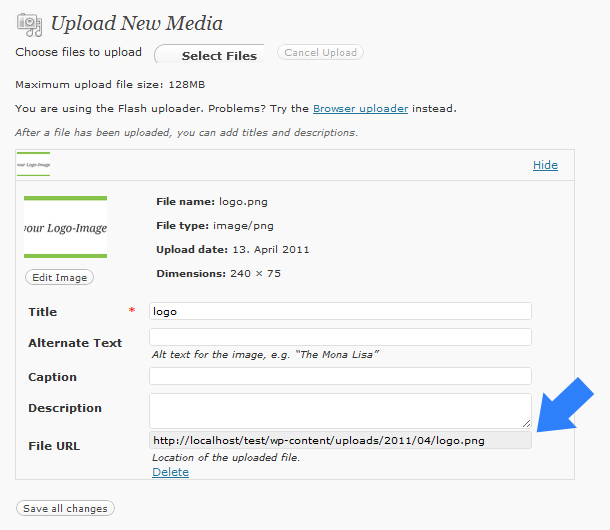
Falls du lieber ein Bild (im .jpg oder .png Format) als Logo verwenden möchtest, kannst du dieses ebenfalls über die Theme-Optionsseite einfügen. Dein Logo sollte maximal eine Größe von 240 x 75 Pixel haben. Nachdem du dein Logo vorbereitet hast, kannst du es über die Mediathek (siehe Link in den Theme-Optionen) hochladen. Dabei kopierst du dir die angegebene URL des Logo-Bildes und fügst diese anschließend einfach in der Theme-Optionsseite ein.
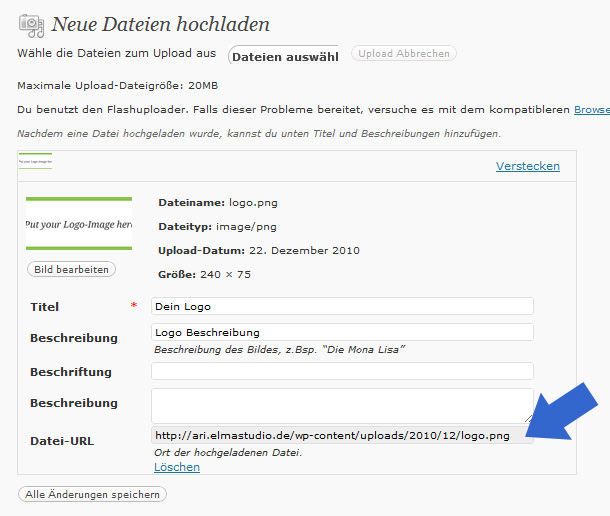
Nachdem du die neuen Einstellungen gespeichert hast, wird dein Logo angezeigt.
2. Sidebar-Widgets
Ari hat im dreispaltigen Webseiten-Layout eine fixe, linke Sidebar von 240 Pixel Breite (Primary Sidebar), sowie eine zweite rechte Sidebar (Secondary Sidebar). Beide Sidebars sind für Widgets vorbereitet (unter Design / Widgets im WordPress Admin-Bereich). So kannst du dir deinen Blog ganz leicht individuell einrichten.
In der schmaleren Screen-Ansicht (z.B. auf einem iPad im Hochformat) rutscht die rechte Sidebar unterhalb des Hauptinhalts. Das Layout wechselt also in eine Zweispaltigkeit.
In der einspaltigen Ansicht für Smartphones ordnet sich die fixe, linke Sidebar ganz oben im Layout an, darunter folgt der Hauptinhalt und dann wieder die Inhalte der zweiten (ursprünglich rechten) Sidebar. Die linke Sidebar eignet sich daher besonders, um einen kleinen About-Text oder deine Seiten-Navigation anzuzeigen.
Über mich Text-Widget
Um einen About-Text in deiner Sidebar anzuzeigen, kannst du ein einfaches Text-Widget nutzen. Falls du ein Profilbild von dir einfügen möchtest, kannst du diesem z.B. eine Größe von 75×85 Pixel geben, und es in den Image-Ordner von Ari einfügen. Unter Widgets im WordPress Adminbereich fügst du dann deinen About-Text, sowie einen img-tag mit Link zu deinem Profilbild ein. Du kannst außerdem noch einen Link im Text setzen.
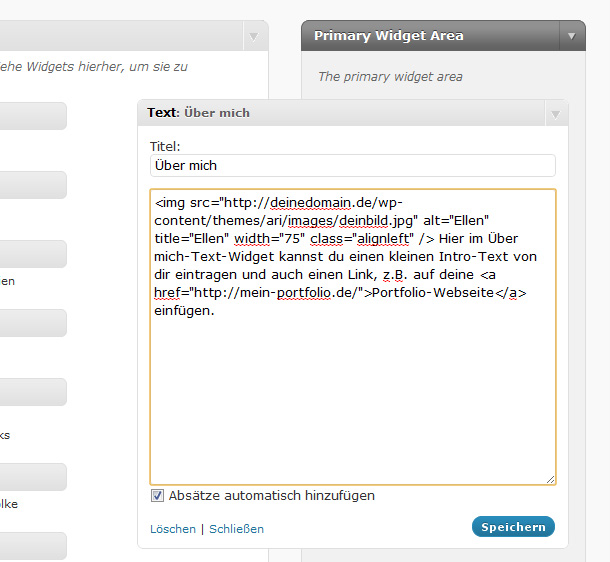
Der Code für dein About Text-Widget siehst dann z.B. so aus:
<img src="http://deinedomain.de/wp-content/themes/ari/images/deinbild.jpg" alt="Ellen" title="Ellen" width="75" class="alignleft" /> Hier im Über mich-Text-Widget kannst du einen kleinen Intro-Text von dir eintragen und auch einen Link, z.B. auf deine <a href="http://mein-portfolio.de/">Portfolio-Webseite</a> einfügen.
[/php]
Social-Links Widget
Um auf deinem Blog auch auf deine weiteren Profile im Netz, sowie auf den RSS-Feed deines Blogs hinzuweisen, haben wir ein individuelles Social-Links Widget für Ari vorbereitet.
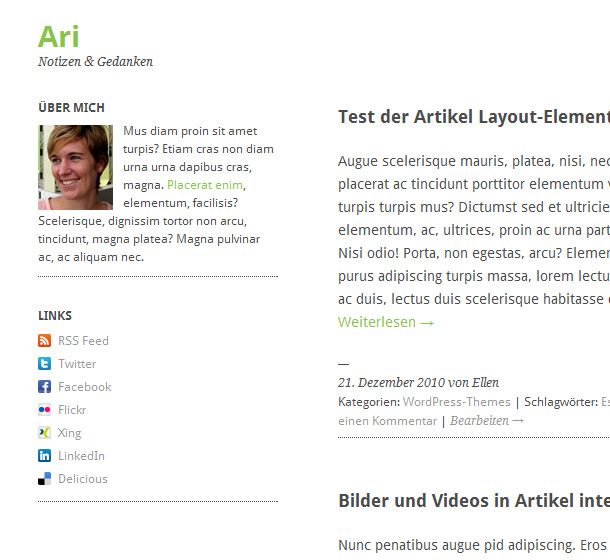
Um das praktische Sidebar-Widget zu nutzen, fügst du im Widget-Bereich einfach das Widget Ari Social Links in eine der Sidebars ein. Hier kannst du einen Titel für dein Widget, sowie individuelle Texte und deine URLs für RSS, Twitter, Facebook, Flick, Xing, LinkedIn und Delicious eintragen.
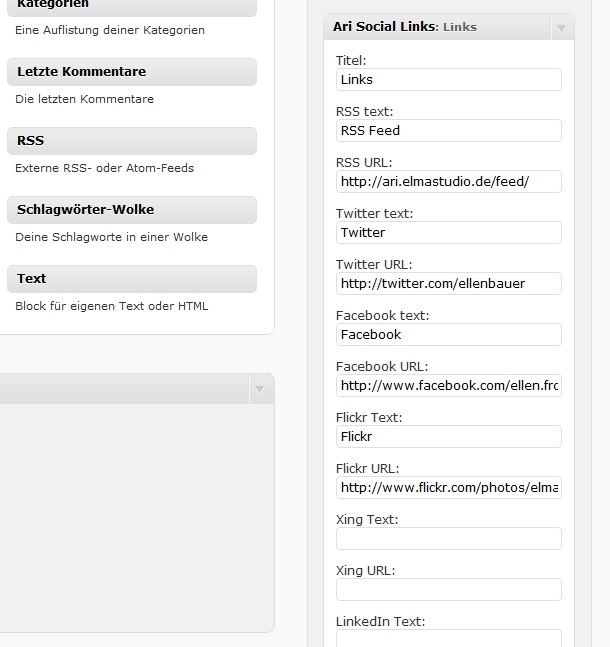
Das Widget zeigt dann automatisch deine Links mit den kleinen Mini-Social Icons an.
Individuellen Menü-Widget für die Seiten-Navigation
Um die Seiten deines Blogs anzuzeigen, ist das Ari-Theme für die Verwendung von individuellen Menüs vorbereitet. Dein Seiten-Menü erstellt du im Adminbereich unter Design / Menüs. Unterseiten kannst du festlegen, indem du das Element einfach per Drag’n’Drop leicht nach rechts verschiebst.
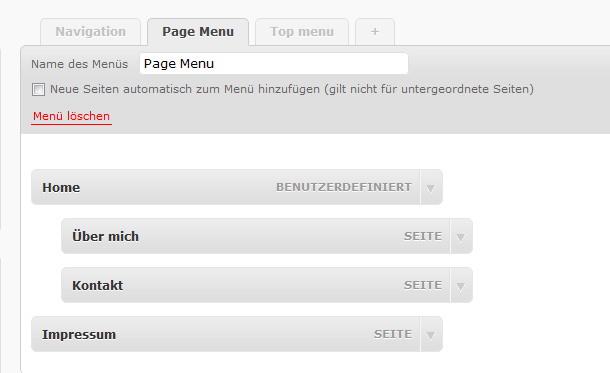
Anschließend nutzt du das individuelle Menü-Widget in den Widget-Optionen, um deine Seiten-Navigation anzuzeigen. Du kannst im individuellen Menü-Widget den Namen deines Menüs auswählen und einen Titel für das Widget bestimmen.
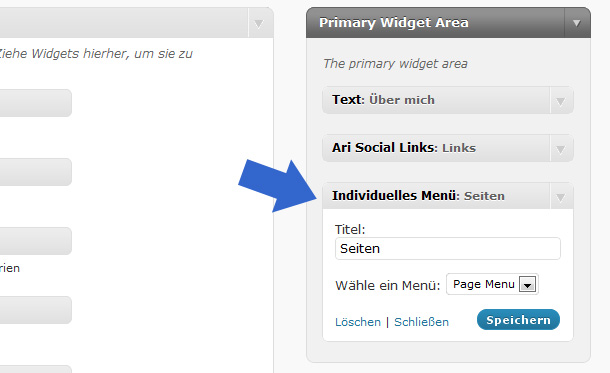
Neben diesen Widgets kannst du natürlich auch noch jede Menge weitere Standard-Widgets, z.B. Suchen, Blogroll, letzte Artikel oder letzte Kommentare für deinen Blog verwenden. Alle Widgets funktionieren sowohl in der linken, als auch in der rechten Sidebar.
3. Text, Bilder und Videos
In deinem Blog kannst du jede Menge Layout-Styes für deine Texte verwenden. Du kannst z.B. Überschriften in h1 bis h6 nutzen, Zitate mit Hilfe des blockquote-tags einfügen, Code mit dem pre-tag eintragen sowie Tabellen und Listen (unordered mit dem ul-tag und ordered mit dem ol-tag) einfügen.
Eine Übersicht über die wichtigsten Elemente zum Styling deiner Blog-Texte kannst du dir in der Live-Ansicht von Ari anschauen.
Neben Text-Elementen kannst du natürlich auch Bilder mit und ohne Bildunterschriften verwenden oder Videos z.B. von YouTube oder Vimeo einbetten.
Damit deine Bilder in den verschiedenen Layout-Ansichten des Themes flexibel skaliert werden können, sollte die Größe der Bilder mindestens eine Breite von 650 Pixel haben.
Eingebettete Videos werden ebenfalls automatisch im Layout skaliert. Eine Beispiel-Ansicht von Bildern und Videos in Ari findest du ebenfalls in der Live-Demo.
4. Ein Autorenfeld verwenden
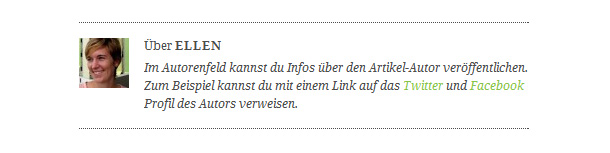
Um ein Autorenfeld unter jedem Blog-Artikel einzufügen, musst du lediglich einen Autoren Info-Text unter Benutzer / Über dich / Biografische Angaben eintragen.
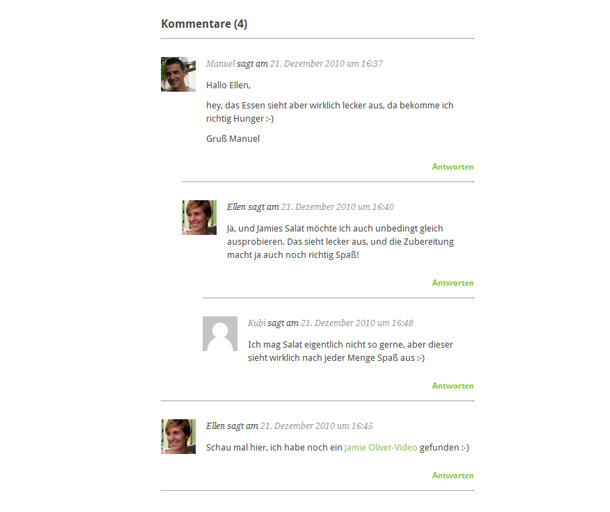
5. Verschachtelte Kommentare
Das Ari-Theme ist für verschachtelte Kommentare vorbereitet. Eventuell musst du diese in deinem Adminbereich noch unter Einstellungen / Diskussion aktivieren.
6. Formulare mit dem Contact 7-Plugin
Um ein Kontaktformular in deinem Blog zu verwenden, kannst du dir das WordPress-Pugin Contact 7 installieren. Für dieses Plugin haben wir die CSS-Stlyes bereits an das Theme-Layout angepasst.
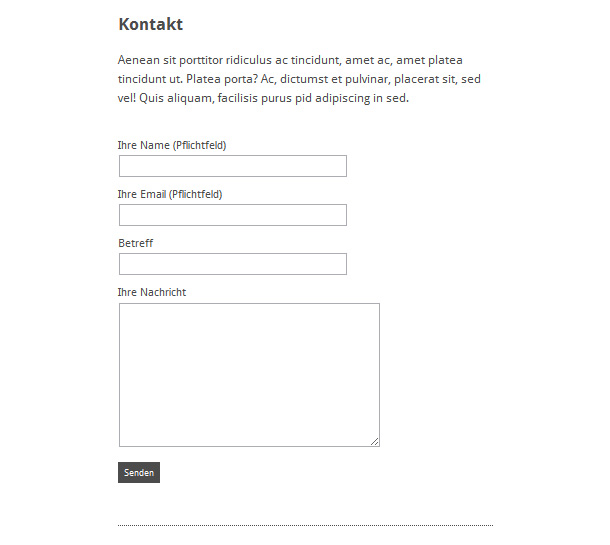
Ein Beispiel-Formular kannst du dir auch auf der Ari Live-Demo Webseite anschauen.
7. Die jQuery Thickbox für Fotos nutzen
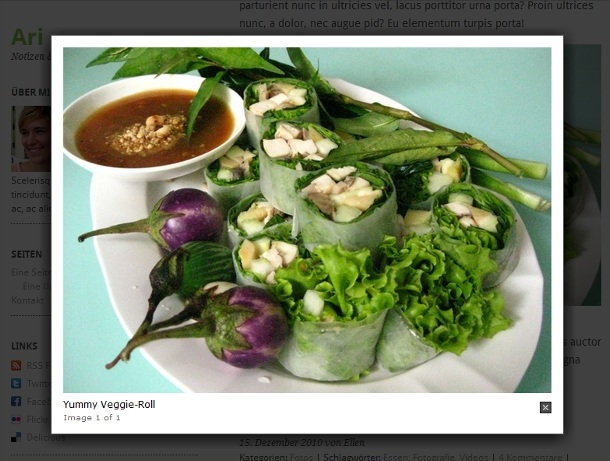
Um deine Fotos auf Seiten und in Artikeln in einer größeren Ansicht anzeigen zu können, kannst du das jQuery-Thickbox Plugin nutzen. Der benötigte Code für das Plugin ist praktischerweise schon standardmäßig bei WordPress mitgeliefert. Um diesen Code auch für das Ari Theme zu nutzen, kannst du dir das Plugin „Auto Thickbox“ installieren.
8. Ein eigenes Favicon einfügen
Du kannst dein eigenes Favicon nutzen, indem du ein 16x16px großes Favicon-Bild im JPG-Format vorbereitet, und dieses dann mit Hilfe eines Favicon-Generators (z.B. favicon-generator.org) in das benötigte .ico Format umwandelst.
Anschließend speicherst du dein .ico Favicon unter dem Namen favicon.ico in den Image-Ordner des Ari-Themes ab.
9. Theme-Übersetzung
Ari ist für die Theme-Übersetzung vorbereitet. Derzeit ist das Theme in Englisch und Deutsch übersetzt. Die Sprache deiner WordPress-Installation wird automatisch auch im Theme übernommen.
Falls du Ari in einer weiteren Sprache verwenden möchtest, kannst du das Theme am einfachsten mit Hilfe des Codestyling Localization-Plugins übersetzten (hier findest du eine Anleitung zur Theme-Übersetzung).
Wir hoffen dir gefällt unser kleines Ari Blog-Theme. Wenn du Fragen zum Theme hast, einen Fehler entdeckst oder dir Optimierungsvorschläge einfallen, schreibe uns doch einfach eine einen Kommentar oder eine Mail an kontakt(at)elmstudio(punkt)de.
Über dein Feedback, deine Tipps und Vorschläge zum Theme freuen wir uns sehr!
English Theme Documentation
Ari is a free WordPress theme with a clean, minimalistic design. The theme has a responsive layout that is optimized for different browser sizes and mobile devices (tablet pcs or modern smartphones). Ari is a simple to use, flexible blog theme best suited for small blogs or personal blogging. You can easily change the background, text and link colors in the theme option page. In the theme options you can also change the logo by using your own logo image. With Ari you can start blogging without having to set up a lot of things and your readers can enjoy reading your blog posts from their tablets pc or smartphone.
Live-Demo and Download:
Ari Theme Overview
Three-column layout in desktop browsers, two-columns in the iPads portrait mode and a one-column layout for iPhones and other smartphones.
The Theme Features
- Clean and minimalistic blog layout.
- Responsive layout with CSS3 Media Queries, optimized for different browser sizes and mobile devices such as iPads, iPhones, Android phones etc.
- Custom theme option page to easily change the background, text and link colours and choose your own logo image.
- Dark theme version (you can switch from the default light design to a dark version in the themes option page).
- Custom social links sidebar widget with mini icons (so you can link to your rss feed, Twitter, Facebook, Flickr, Delicious, Xing or LinkedIn page).
- Ready for theme translation (right now there is and English and German translation available).
- Threaded comments are supported.
- CSS-Styles for the Contact form 7 wordpress plugin.
- Use of Google Free Fonts Droid Serif and Droid Sans from the Google Font API.
Theme License:
Ari is released released under the license GPLv2 (or later) (jsut like WordPress). You can finde more information about the license at the www.gnu.org website.
1. The Theme Option Page
Ari’s custom theme option page gives you the opportunity to choose your own colors for the theme background, the text and the links. You can also use your own logo image instead of the default Logo text.
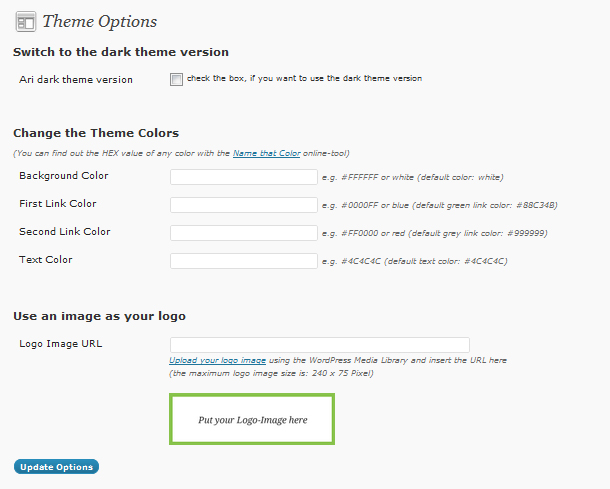
You can find the theme option page in your WordPress admin area under Apperance / Theme Options.
Dark theme version
In the theme options page you can also choose the dark design version of Ari. To do so just check the box „Ari dark theme version“ at the top of the page. With the dark theme version you can still change the link and text colors.
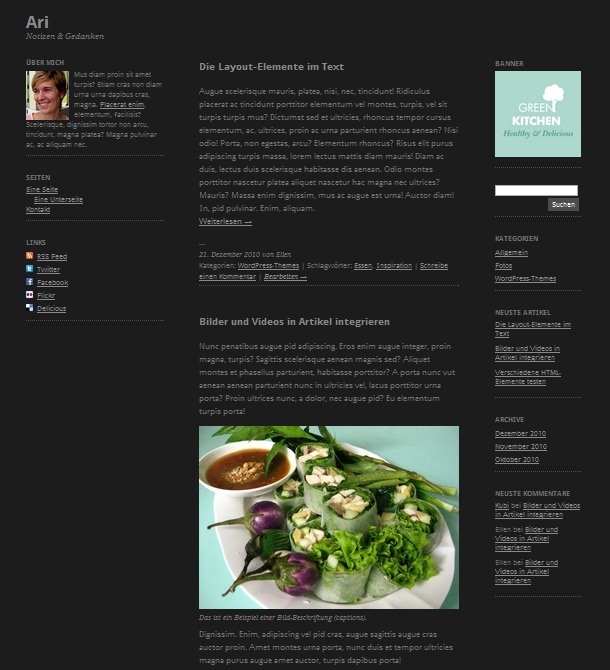
To see a live demo of Ari’s dark theme version just go to www.ari.elmastudio.de and choose Ari Dark in the right sidebar under „Theme Test“.
Custom colors
To set your individuell text, background and link colors can pick a hex-value like #4C4C4C. Its important that you include the # with the number. Alternatively you can just type a color name like red or blue.
Choose an image as your blog logo
If you rather want to use a logo image instead of the default text logo you can upload your own logo image to the WordPress media library. The image size should be max. 240×75 Pixel. After you uploaded your image to the library just copy the URL of the image and include it in the theme options page under „Logo image URL“. Don’t forget to save your theme option settings.
2. Sidebar Widgets
Ari has a 3-column layout with a fixed left sidebar and a scrollable right sidebar. The left sidebar (its called Primary Sidebar) has a fixed width of 240px. The right sidebar (Secondary Sidebar) has a flexible width with a default width of 150px in the standard browser size. Both sidebars are widget ready (you can choose your widgets under Appearance / Widgets). With the WordPress widget option you can change your blog content very easily.
Because the left sidebar does not scroll with the content you have to be careful not to include too many widgets, otherwise the content can not be seen on smaller, not so high screens. Therefore the left sidebar is best suited for a short about or intro text and maybe the page navigation.
Because the Ari theme has a flexible layout the right sidebar switches to the bottom of the page when the screen is not wide enough to show all the content (like on tablet pcs or small travel laptop screens).
Is the screen even smaller, like on a smartphone, the layout changes to a one-column layout with the main content under the primary sidebar and the content of the right (secondary) sidebar at the bottom of the web page.
About Text-Widget
To show an „about me“ text in your sidebar you can just use a standard WordPress text widget. If you want to include an image in your widget you can prepare an image for instance with the size 75x85px and upload it to the Ari theme folder „images“. In your text widget you can then include your image using and HTML image-tag. Additionally you can include a link in your text using an anchor-tag.
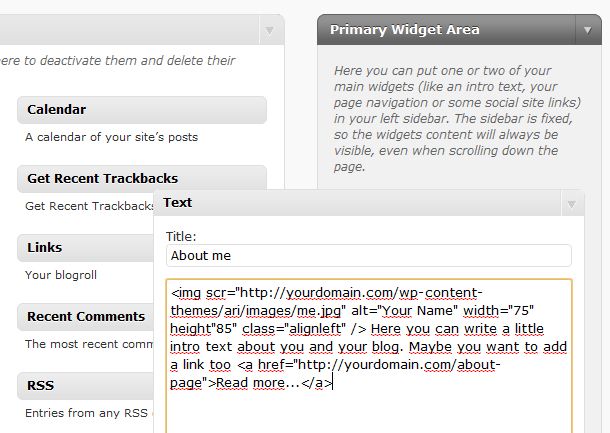
So the code you can include in your text widget could look like this:
<img src="http://yourdomain.com/wp-content/themes/ari/images/yourimage.jpg" alt="your name" width="75" class="alignleft" /> <a href="http://mein-portfolio.de/">Read more…</a>.
[/php]
Social Links Widget
To link from one of the sidebars to your social network sites you can use the Ari Social Links widget. With the widget you can easily include links to your facebook, twitter, flickr, Xing, Linkedin or delicious page and to your rss feed.
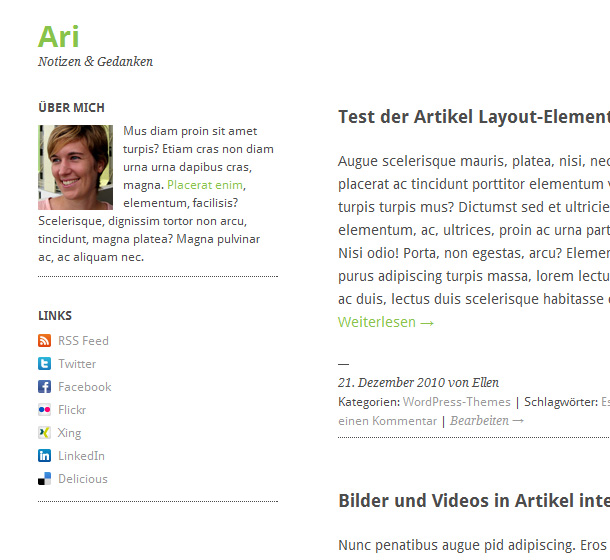
To use the widget just drag’n’drop the „Ari Social Links“ widget in one of your sidebars and include your links and link texts. If you don’t want to use all the links just leave them blank.
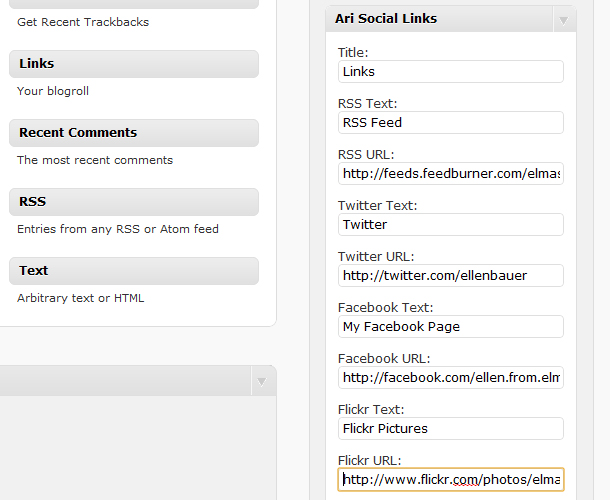
After you saved your settings you will see the widgets with links and mini icons in your sidebar.
Custom menu widget for the page navigation
To show a navigation to your WordPress pages you can use the custom menu option (Appearance / Menu) to set up an individuell menu. You can easily drag’n’drop your pages around and change their order. To mark sub pages just drag them a little bit to the right side.
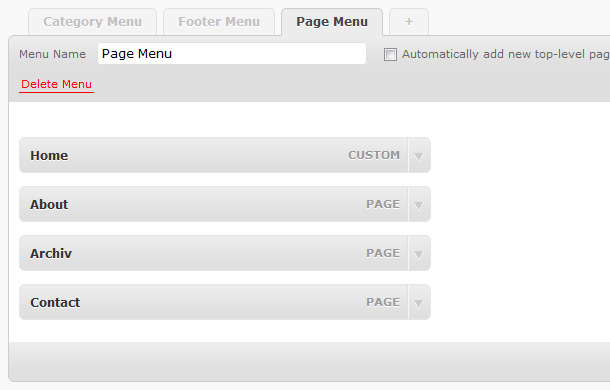
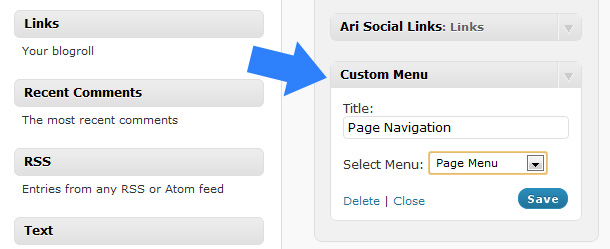
After setting up your custom menu you can add the menu to one of your two sidebars via the Custom menu widget. Just choose the name of your menu and save your widget.
3. Text, Images and Videos
In your theme you can use many different text styles such as h1 to h6 tags for headings. For quotes you can add the blockquote-tag (b-quote), you can wrap code snippets in a pre-tag or use lists (ul and ol) and tables.
Have a look at all the different text style options in the Ari theme demo.
To add fullsize images to the articles and pages crop them to at least 650 Pixel width. Otherwise they will not be 100% sharp in the responsive layouts.
Embedded videos will be automatically scaled to fix the articles width. You can see a demo of YouTube and Vimeo videos at the Ari demo website.
4. Show an author info at the end of each post
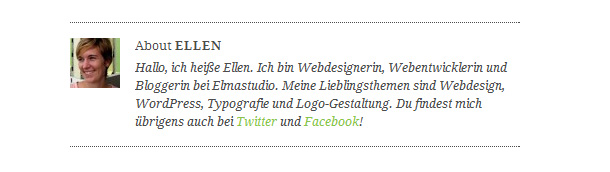
To show a short author information text and the authors gravatar image at the end of each single post page just fill out the Biographical info text in the users profile.
5. Threaded comments
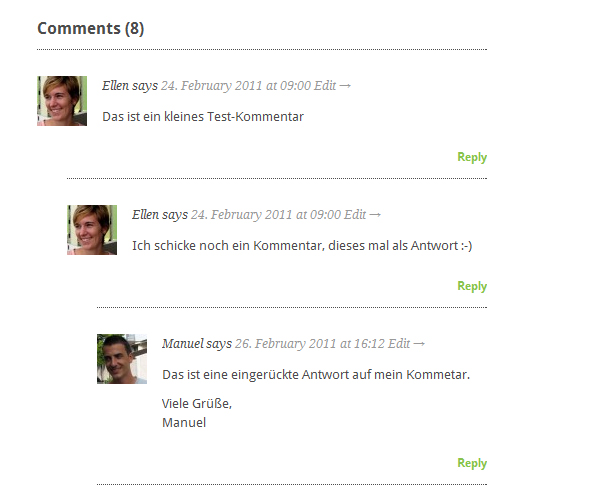
Ari supports WordPress threaded comments. If the reply buttons after each comment don’t show up automatically you may have to activate the threaded comments option in your Settings under Discussion / Enable threaded (nested) comments.
6. Use forms with the Contact Form 7 WordPress plugin
We prepared styings for the „Contact Form 7“ WordPress plugin. So if you want to add a form to your blog just install the plugin and the styles will fit to the Ari blog layout. To see a demo of a contact form have a look at the Ari live theme.
7. Use a jQuery Thickbox for images
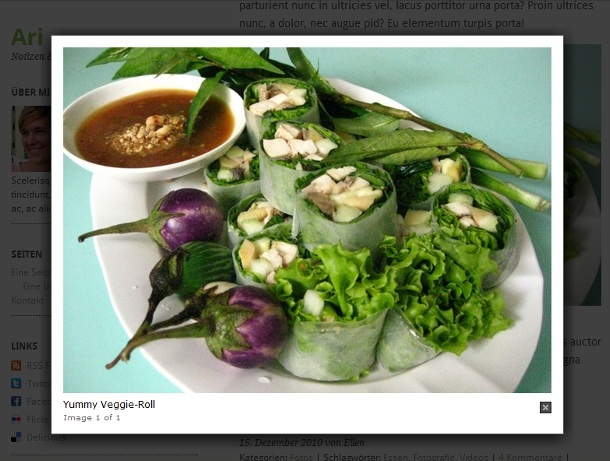
To show pictures or a picture gallery in posts and pages you can add a jQuery thickbox to your blog. The jQuery code is already included in WordPress so you just need to install the WordPress plugin „Auto thickbox“ to enable the thickbox faeture for your pictures.
8. Use your own favicon
To use your own favicon just choose an 16x16px jpg or png image and generate an .ico image with any online favicon generator (e.g. www.favicon-generator.org).
Then you name your .ico image favicon.ico and add the favicon to the Ari image folder.
9. Theme translation
Ari is set up for theme translations. Right now there is the default English and a German theme translation available. The language of your WordPress installation will be automatically your theme language.
If you want to translate Ari into your language you can install the WordPress plugin „Codestyling Localisation“. At the plugins homepage you can find a detailed instuction on how to use the plugin.
Of couse we would be thrilled if you would make your theme translation also available to use for other Ari users as well. Please contact me if you want to share your Ari language file (kontakt(at)elmastudio(dot)de).
If you have any questions, suggestions or feedback about the Ari theme please leave a comment below. We are happy to hear from you!
Ari Theme Changelog
Update Version 1.0.7 (9th March 2011):
– Bugfix in style.css line 386 to fix auto resizing smaller images to 100% content size.
Update Version 1.0.6 (5th March 2011):
– Included a clearing div after the content in loop.php to properly clear floated images on multiple page posts (recommended by wordpress.org theme review).
– Updated the functions.php and deleted the deregister the WordPress bundled jQuery (as recommended by wordpress.org theme review).
– Changed the footer link and text in footer.php.
Update Version 1.0.5 (8th Feb. 2011):
– Bugfix for Internet Explorer 8 auto image height problem.
– Fixed the code for the image logo option in header.php.
Update Version 1.0.4 (30th Jan. 2011):
– Updated the theme tags in style.css
– Updated styles in style.css for search result page.
– Small bugfixes in the template files header.php, footer.php, single.php, loop.php und functions.php after running the theme check plugin.
Update Version 1.0.3 (27th Jan. 2011):
– Included CSS-Styling for the default WordPress image gallery (see style.css line 591 – 614).
– Included extra style in stlye.css to fix the broken display of large pictures (over 150px width) in the right, secondary sidebar (see style.css line 219).
– Included an filter in functions.php (line 426) to disable the default include of css-styles for the WordPress gallery inside the body-tag.
Update Version 1.0.2 (20th Jan. 2011):
– Fixes on the Ari Social Link Widget code in functions.php (from line 246 – 255), beacuse empty Link icons still visible on firefox and IE browsers.
Update Version 1.0.1 (13th Jan. 2011):
-Fixed the Ari Social Link Widget code in functions.php and included the option to write individuel text for the different social links.
– Included a dark color theme option that can be selected on the theme option page. The CSS file dark.css can be found in the new folder „css“. To make the dark version work I also updated the header.php file and added line 18 to 20.
– Changed the screenshot picture.
– Updated the language files for the German translation de_DE.mo and de_DE.po in the „languages“ folder.
– Updated the description text in style.css (from line 4).
– Included individual CSS styles for the jQuery thickbox in style.css.
– Included the changelog.txt file in the ari theme folder.
Version 1.0. (22th Dec. 2010):
– Ari Theme Release
247 Kommentare
—
Hallo Ellen,
vielen Dank für dieses tolle Theme. Es wird bestimmt demnächst auch bei mir mal zur Anwendung kommen.
Eine Frage habe ich allerdings: Darf man im Code rumspielen, oder darf das Theme nicht verändert werden?
Kreative Grüße,
Niklas
—
Hallo Niklas,
vielen Dank für dein Feedback zum Theme :-) Klar, darfst du dich auch an den Code ran machen ;-) Wenn du das Theme verwendest würden wir uns über einen Backlink natürlich immer sehr freuen :-)
Viel Spaß mit dem Theme und viele Grüße,
Ellen
—
Ellen, großartige Arbeit. Habe dafür zwar keine Verwendung, aber dein Engagement muss durch einen Tweet und diesen Kommentar belohnt werden.
—
Kann mich da Sergej zu 100% anschließen. Klasse Sache. Wird sicher die Tage einen Blogartikel dazu geben.
grüße Ralf
—
Hallo Ralf,
vielen herzlichen Dank auch für dein positives Feedback. Es freut uns sehr, dass dir das Theme auch gefällt :-)
Und wenn du sogar einen Artikel über das Theme schreiben möchtest, wäre das natürlich genial :-)
Viele Grüße,
Ellen
—
Ja, wenns mir zeitlich reicht, werde ich morgen darüber schreiben!
Sag mal, dürfte ich die Screenshots aus dem Artikel hier für meinen Beitrag verwenden? Wäre klasse!
grüße Ralf
—
Klar, kannst du die Screenshots zum Theme für einen Artikel verwenden, würde uns sehr freuen :-) Aber mache dir nur keinen Stress mehr, so kurz vor Weihnachten :-)
Viele Grüße,
Ellen
—
Hallo Sergej,
vielen herzlichen Dank für dein nettes Feedback, das freut uns wirklich sehr :-) Und vielen Dank natürlich auch für deinen RT :-)
Viele Grüße,
Ellen
—
Wirklich super gemacht. Darauf habe ich schon lange gewartet ! WordPress Themes die auch auf iPad und iPhone anpassbar sind werden immer wichtiger.
—
Hallo Roman,
vielen Dank für deinen Kommentar. Es freut uns sehr, dass dir das Ari-Theme und auch die Theme-Vorbereitung für mobile Geräte gefällt :-)
Viele Grüße,
Ellen
—
Hallo Ellen,
deine „How-To“-Anleitung, die so sehr detailliert ist, finde ich genial!
Mit Screenshots und anleitende Worte dazu kann das sicher jeder WP-Tüftler sehr gut umsetzen und anpassen.
Und mobiles Web ist ja fast schon ein Muss!
Anerkennende Grüße
Heike Blum
—
Hallo Heike,
vielen herzlichen Dank für dein postives Feedback. Es freut mich, dass du die Optimierung für mobile Geräte und auch die Theme-Dokumentation so hilfreich findest :-)
Ich denke, ganz besonders wenn man noch nicht so sehr mit einem bestimmten Theme, bzw. mit den Funktionen von WordPress-Themes allgemein vertraut ist, kann so eine Doku mit Screenshots sehr nützlich sein :-)
Viele Grüße,
Ellen
—
Hallo, ist es möglich dass ich im iPhonebrowser weniger Widgets anzeigen kann ? Ich hoffe das Theme wird weiterentwickelt, danke !
—
Hallo Roman,
diese Funktion ist bis jetzt noch nicht vorbereitet, der Vorschlag ist aber super und wir werden mal schauen, ob wir eine solche Option in die Theme-Features einbauen.
Bis dahin kannst du direkt im Stylesheet unter „responsive“ in den media-queries mit der max-width 600px den entsprechenden Widgets die CSS-Eigenschaft display: none; geben.
Viele Grüße,
Ellen
—
Hallo Ellen,
vielen Dank für dieses tolle, flexible Theme und die „Gebrauchsanweisung“ dafür. Werd ich gerne mal ausprobieren ;-)
Schönen Gruß
—
Hallo Stefan,
vielen Dank für deinen Kommentar.Toll, dass dir das Ari-Theme und auch die Theme-Beschreibung so gut gefällt. Es du das Theme ausprobieren möchtest, würden wir uns natürlich riesig freuen :-)
Viele Grüße,
Ellen
—
Vielleicht können wir ein Showcase machen ? Meine Installation des Themes ist http://www.romankeller.ch/blog
—
Hallo Roman,
hey, dein Blog sieht klasse aus, da hast du ja echt tolle Arbeit geleistet! Ein Showcase ist wirklich eine super Idee, das müssen wir unbedingt umsetzen. Vielen Dank für diesen Vorschlag :-)
Viele Grüße,
Ellen
—
Wirklich ein sehr schickes Theme. Aktuell habe ich leider keinen Bastelblog zur Verfügung um es auszuprobieren. Aber das wird definitiv nachgeholt. Ich hoffe von euch gibts irgendwann noch weitere Themes, gerne auch im Premium Bereich :)
LG und schöne Feiertage
Piet
—
Hallo Piet,
vielen Dank für deinen Kommentar, es freut uns sehr, dass dir das Ari Theme gefällt. Wir würden uns natürlich riesig freuen, wenn du es einmal ausprobieren möchtest :-)
Die Umsetzung unseres ersten Free-Themes hat wirklich jede Menge Spaß gemacht und es ist klasse, so frei Ideen entwickeln zu können. Ich hoffen also wirklich sehr, dass in der Zukunft auch noch weitere Themes entstehen werden :-)
Viele Grüße,
Ellen
—
Das Theme ist super. Es wirkt leicht und modern, ist aber nicht langweilig oder kühl. Wirklich sehr geschmackvoll. Das es für mobile Geräte optimiert ist, finde ich toll und auch wichtig. Die Menuführung finde ich sehr übersichtlich. Das die linke Menuspalte stehen bleibt finde ich originell. Die schriftgröße ist für meinen Geschmack etwas klein, vielleicht auch aufgrund der Dreispaltigkeit. Aber das ist auch etwas Geschmackssache. Ich stehe z.Zt. eben auf sehr große Schriftgrade in Websites. Also, echt super. Weiter so!
—
Hallo Parameshvara,
vielen Dank für dein tolles Feedback zu Ari. Es freut uns, dass dir das Theme gefällt und du sowohl das Design, als auch die Umsetzung für mobile Geräte gelungen findest :-)
Ja, große Schriften sind natürlich auch klasse und es gibt echt tolle Theme-Designs mit großer Typo. Für die Realisierung eines kleinen Blog-Themes und auch wegen der Optimierung für iPads und iPhones haben wir uns hier bei Ari für eine eher kleinere Schriftgröße entschieden. Wer möchte, kann sich die Schriftgröße im CSS aber auch noch individuell anpassen :-)
Viele Grüße,
Ellen
—
Wieder einmal exzellente Arbeit und ein klasse Theme! Gefällt mir sehr gut :)
LG Tom
—
Hallo Tom,
vielen Dank für dein tolles Feedback. Es freut uns riesig, dass dir unsere Arbeit so gut gefällt :-)
Viele Grüße und einen guten Rutsch,
Ellen
—
Ein sehr schickes Design über das ich jetzt erst gestolpert bin. Gratulation.
Und um ehrlich zu sein, das Theme wird für ein ganz bestimmtes Projekt ausgewählt und benutzt… Danke
—
Hallo Uwe,
vielen Dank für deinen Kommentar, klasse, dass dir Ari so gut gefällt und du das Theme auch für ein Projekt verwenden möchtest :-) Sag doch bescheid, sobald es online ist, da wir auch an einem Showcase für Ari arbeiten.
Viele Grüße und einen guten Rutsch,
Ellen
—
Ich habe dazu eine CSS Frage. Es gibt einen Content Img Part um die Bilder der Posts zu formatieren. Wie kann ich das selbe mit Videos machen ?
—
Hallo Roman,
im Stylesheet ab Zeile 401 findest du für die Video-Styles content object, embed und iframe. Bisher habe ich YouTube-Video uns Vimeo getestet. Bei Vimeo gibt es jetzt sogar einen neuen Embed-Code für die Optimierung auf iPad und iPhone. Falls du noch Fragen hast, sag bescheid oder schicke einfach einen Link zu deiner Seite :-)
Viele Grüße und guten Rutsch,
Ellen
—
Ellen, ich habe ein Problem…ich nutze folgenden Code um Videos als iframe einzubinden. Sie werden trotz height: auto; viel zu weni hoch dargestellt was bei den Fotos funktioniert. Was kann ich machen ?
#content iframe {
border: 1px solid #ccc;
padding: 9px;
background: #fff;
border-radius: 5px;
-moz-border-radius: 5px;
-webkit-border-radius: 5px;
-khtml-border-radius: 5px;
max-width: 93%;
height: auto;
display: block;
}
—
Hallo Roman,
vielen Dank für deine Nachricht. Ich teste die Darstellung der Videos auch gerade noch etwas aus und gebe dir gleich bescheid, sobald ich eine passende Lösung gefunden habe, ja.
Viele Grüße,
Ellen
—
Ich habe deine eingebetteten Videos gerade noch einmal angeschaut. Hast du im Embed-Code den ganz normalen height-Wert noch integriert? Das sollte zumindest bei YouTube und Vimeo helfen, so dass die Videos nicht mehr so niedrig angezeigt werden :-)
Gruß Ellen
—
Ich nutze diesen Code und die Video bleiben klein.
Link: http://www.romankeller.ch/blog/?p=1312
—
Hallo Roman, in Deinem Theme sehe ich eine kleine Leiste mit den Social Media-Infos. Hast Du das Ari-SM-PlugIn angepasst?
—
Super Ellen, danke ist spitze ! Ich habe Fotos und Filme formatiert: http://www.romankeller.ch
—
Hilfe, es ist zum …grrr ! Ich kriege die Videoformatierung nicht hin. Einmal ist es im Desktop Browser zu klein, jetzt im iPhone Browser zu gross. Bitte um Hilfe. Hier mein CSS: http://www.romankeller.ch/blog/wp-content/themes/ari/style.css
—
Hallo Roman,
tut mir leid, dass es mit der flexiblen CSS Video-Formatierung noch nicht ganz klappt. Ich hatte in den letzten paar Tagen leider auch super viel zu tun, und konnte mich noch nicht um eine Optimierung kümmern. Ich werde mir das Problem aber auf alle Fälle diese Woche noch anschauen, und gebe dann wieder hier bescheid :-)
Viele Grüße,
Ellen
—
Besten Dank Ellen. Als Hinweis, wenn ich height: auto; verwende stimmt die Höhe der Video auf dem iPhone aber im Safari des Desktops zeigt sie dann schmal an..
—
Hallo Roman,
ich habe mich übers Wochenende noch einmal etwas intensiver mit dem Thema Video-Embed und Media Queries auseinander gesetzt. Im Ari Theme habe ich es nun so umgesetzt:
Für Vimeo und YouTube sollte man idealerweise die neuen Embed-Codes mit iframe nutzen. Diese werden inzwischen Standardmäßig angeboten (bei YouTube muss man die Option iframe noch mit einem Häkchen extra anwählen). Weitere Infos zum Thema Youtube Embed mit iframe gibt es auch noch im Artikel: „A New Way to Embed YouTube Videos“.
Im CSS-Code von Ari lautet der CSS-Style für iframe:
#content iframe {
display: block;
max-width: 100%;
margin: 5px 0 10px 0;
}
Damit die Höhe der Videos in der dreispaltigen Ansicht nicht zu niedrig angezeigt wird, solltest du also keinen height-Wert auto im CSS angeben.
Beispiel-Videos habe ich ebenfalls in die Theme-Demo eingefügt.
Ich hoffe diese Infos helfen dir weiter, wenn noch Fragen auftauchen, melde dich einfach noch einmal. Ich werde das Thema Video-Einbettung auch noch in die Theme-Dokumentation aufnehmen :-)
Viele Grüße,
Ellen
—
Danke Ellen für deine Mühe, jedoch funktioniert das bei mir nicht. Im PC Safari werden so die Video zu hoch dargestellt. Scheint wohl ein Safari Problem zu sein…;-(
—
Hallo Roman,
falls du die einspaltige Ansicht im Safari-Browser meinst, ist das schon in Ordnung so. Da die Ansicht möglichst flexibel sein soll, muss man gewisse Ränder oben oder seitlich im Player in Kauf nehmen. Die neuen iframe-Codes von YouTube und Vimeo sind aber sowieso dafür optimiert, dass z.B. beim iPhone der eigene Player des Geräts verwendet wird :-)
Viele Grüße,
Ellen
—
Verflucht schönes und sauberes Theme. Vielen Dank!
—
Hallo Gerrit,
vielen Dank für dein Feedback. Klasse, dass dir Ari so gut gefällt :-)
Viele Grüße,
Ellen
—
Hammergenial, dieses einfache sehr gut dokumentierte Theme, zu schade, dass ich da gerade keine Verwendung für habe.
—
Hallo Ellen,
so ein wunderschönes, einfach gestaltetes Theme, was ihr da gebastelt habt. Leider funktioniert bei mir der Download nicht. Muss ich mich irgendwo bei euch anmelden oder hab ich einfach etwas übersehen?
Ansonsten kann ich nur sagen, macht weiter so und entwickelt es weiter. Man findet selten so klar definierte Themes.
Viele Grüße
Hartmut
—
Hallo Hartmut,
vielen Dank für dein tolles Feedback zu unserem Theme. Es freut uns sehr, dass dir Ari gefällt :-) Ich habe den Download gerade noch einmal getestet, und es sollte eigentlich alles in Ordnung sein.
Wenn du auf den „Free Download“-Button klickst, kannst du die zip-Datei mit dem Theme-Ordner herunterladen.
Alternativ versuche es doch einmal mit folgendem Link:
Ari Theme Download
Ich hoffe es klappt, ansonsten sag einfach noch einmal kurz bescheid.
Viele Grüße,
Ellen
—
Hallo Ellen,
vielen lieben Dank für deine schnelle Antwort und den Link :).
Nun hat es funktioniert und ich werde gleich mal schauen, was ich damit anfangen kann auf meinem Blog: abgeschlankt.
Einen schönen Rest- Sonntag und guten Start in die neue Woche wünsche ich dir/ euch.
Liebe Grüße aus Dresden
Hartmut
—
Hallo Ellen,
entweder ist mir das bei der ersten Installation nicht aufgefallen, oder der (kleine) Fehler hat sich jetzt erst eingeschlichen:
Der Abstand vom title zur Suchfunktion ist zu gering bzw. überlappt.
Habe das neue (Dark) Theme jetzt auf einem andern PC installiert und da fällt mir das sofort ins Auge.
Ansonsten find ich das Theme wirklich klasse.
Liebe Grüße,
Stefan
—
Nachtrag:
Der von Hartmut erwähnte kaputte Download-Link befindet sich nicht im Artikel (der funktioniert), sondern in der Sidebar ;-)
—
Genau Stefan ;-) … und den im Artikel hab ich gar nicht bemerkt oder einfach übersehen, obwohl jetzt im Nachhinein gesehen, der Button neben der Demo ja groß genug ist…Ich werde alt…*lach*
—
Wir alle ;-)
—
Nachtrag 2:
Mein Blogtitle hatte vorher einen Bindestrich und verursachte einen Zeilenumbruch. Nachdem ich den Bindestrich entfernt habe, stimmen die Abstände wieder.
—
Ein wirklich tolles WordPress-Theme. Überlege gerade sehr stark diese für mein Blog zu verwenden. Danke für die Kreation ;)
—
Ich hätte da noch Verbesserungsvorschläge: Könnte man ein Alternatives Bloglayout im Gridstyle wie bei Imbalance von WpShower einbauen ?
—
Hallo Ellen,
einen Vorschlag hätte ich da zu machen. Bei diesem Theme bietet es sich geradezu an, den statischen Bereich getrennt vom Scrollbereich einfärben zu können. Würde ich zumindest gerne tun wollen.
Wäre so etwas ohne weiteres möglich?
Viele Grüße
Hartmut
—
@igor, @Hartmut, @Stefan:
Vielen Dank für euer Feedback zu Ari, es freut uns, dass euch das Theme gefällt :-)
Der Link in der Sidebar sollte übrigens nur zum Theme-Artikel mit Download hier führen, der Link-Text war wohl etwas missverständlich. Ich hab’s gerade angepasst :-)
@Hartmut, @Roman:
Vielen Dank für eure Vorschläge für das Ari-Theme. Ich schaue mal, was wir zukünftig noch alles als weitere Optionen einbauen können, um das Theme so noch flexibler zu machen :-)
Viele Grüße,
Ellen
—
Hallo Ellen,
bin nach wie vor ein großer Fan von Eurem schönen Theme. Ich habe es – als ersten Praxis-Test – vor ein paar Tagen genutzt, um endlich mal meine Architektur-Diplomarbeit (von 2000) neu ins Netz zu stellen: http://unternull.de
Habe schon ein weiteres (echtes) Projekt für das Theme im Auge, diesmal wohl mit der dunklen Farbvariante.
Grüße aus Berlin
Eric
—
Hallo Eric,
wow, dein Blog sieht klasse aus, die Arbeit muss ich mir aber noch einmal in Ruhe genauer anschauen :-)
Es freut uns auf alle Fälle sehr, dass dir Ari so gut gefällt :-)
Viele Grüße und ein schönes Wochenende,
Ellen
—
Hallo zusammen,
und mein Kompliment an deine Seite, Eric. Vor allem die Verlinkung sehr sauber gelöst. Hast du das mit Kategorie > Unter- Kategorie gemacht?
Ich habe ja meinen Blog versuchsweise auch in der Ari- Version laufen und bin noch am probieren. Ich muss allerdings noch einiges lernen und mich in WordPress reinfitzen.
Viele Grüße an alle und ein tolles Wochenende
Hartmut
—
Eric: Mir gefällt Unternull. de sehr. Wie hast du das mit dem Sliding Menu gelöst ?
—
@Roman: Hi, nach einem halben Jahr lese ich Deine Frage … sorry.
Also, das eingeklappte Menü von http://unternull.de ist ne ziemlich einfache CSS-Lösung. Kannst Du gerne übernehmen.
—
Hi, ich finde dieser Theme gefällt mir auch sehr. Habe es auch endlich für mein kleines Blog verwendet.
http://akute-phase.de
Vielen Dank !
—
Hallo igor,
super, dein Blog sieht echt klasse aus! Mir ist aufgefallen, dass die Banner in der rechten Sidebar nicht 100% sichtbar sind. Für diesen Fall habe ich im letzten Update einen zusätzlichen CSS-Style eingefügt. Diesen kannst du auch manuell in deine style.css Datei einfügen:
Dazu fügst du einfach noch den Code:
#sidebar-secondary img {
max-width: 100%;
display: block;
margin:0px;
padding: 0;
}
in style.css unter Secondary Sidebar ein.
Falls es nicht klappt, sag einfach noch einmal bescheid :-)
Viele Grüße,
Ellen
—
Hi , tolles Theme
Ich hätte gerne das die linke Seite nicht fixed ist . Kann ich das irgendwo ändern ?
Auch so ein Footer Bereich wie hier auf der Seite wär cool
Lg aus Köln
Günter
—
ok , teil 1 mit dem fixed hab ich gelöst.
Jetzt fehlt nur noch so ein Footer – Widget – Teil
Lg
Günter
—
Hallo Guenther,
vielen Dank für dein Feedback zu Ari, es freut mich, dass dir das Theme gefällt :-)
Auf einen großen Footer mit zusätzlichen Widgets haben wir bei Ari übrigens bewusst verzichtet, da das Theme ja auch für mobile Geräte bzw. iPads optimiert ist.
Auf kleineren Bildschirmgrößen wird die Rechte Sidebar dann zum Footer. Am besten du testet es einmal, indem du dein Browser-Fenster auf verschiedene Größen verschiebst.
Viele Grüße,
Ellen
—
Hallo Ellen,
das sieht wirklich schick aus! Dickes Kompliment (auch für Eure vielen anderen verdammt guten Tutorials).
Frage: Willst Du dieses Ari-Template nicht auch noch hinsichtlich HTML5 (neue Elemente wie , etc. und auch Modernizr-Downgrade-Funktionalität) trimmen? Dann bräuchte man das Starkers-Template fast nicht mehr:-)
Viele Grüße
—
Hallo Thomas,
vielen herzlichen Dank für dein tolles Feedback zu unserer Arbeit :-)
Ich bin mir sicher, dass wir in einem zukünftigen Update von Ari auch noch eine HTML5-Version umsetzen werden. Im Augenblick überlegen wir auch schon, wie wir die neue (in WP 3.1 erwartete) Custom Post-Funktion in Ari gestalten können. Es gibt also bereits jede Menge Ideen und to-dos für die Zukunft, und es macht großen Spaß, dass Theme weiter zu entwickeln :-)
Viele Grüße,
Ellen
—
So, ich stelle nun mein Blog um. Mal sehen wie es wird… ;)
—
Klasse, das freut uns! Sag bescheid, falls Fragen auftauchen :-)
—
Siehe http://padlive.de/
Meine Social-Media-Buttons im Kopf des Beitrags sind „Verschwunden“. Sind diese zu weit auf der rechten Seite (im alten Theme war die Beitragsspalte größer…)
vg gerd
—
Simple Facebook® Share Button by Erick Hitter
…und…
Tweetmeme Retweet Button Integration
…im Einsatz. Danke!
Oder kennt Ihr lauffähige Alternativen?
—
Check: Neue PlugIns im Einsatz für Twitter und FB:
WP Tweet Button
FBLikeButton
Die Position ist aber noch nicht… gut.
Beispiel: http://padlive.de/2011/02/neues-blog-theme-ari/
—
@Gerhard, Social-Media-Button
Dieses Problem hatte ich auch. Unter Chrome zeigte es alles an, aber unter Firefox und IE fehlte da einiges, ergo, der rare Platz wird leider zusätzlich bei der Ansicht in verschiedenen Browsern beschränkt.
Da ich auch wenig Ahnung davon habe, kenne ich keine Lösung des Problems.
—
Danke Hartmut. Suche weiter nach einer Lösung.
—
Seltsam. Nun funktionieren die Buttons, aber die Position ist nicht… gut :)
http://padlive.de/2011/02/neues-blog-theme-ari/
Gerd
—
Klasse Theme :-) Wie kann ich denn die breite der Artikel noch ändern? Mir ist das ein kleinwenig zu schmal…
—
Danke für Eure tolle Ari – WordPress -Theme.
—
Würde ich gern auch anpassen. Rechte Spalte schmaler – Content-Bereich etwas breiter. Perfekt!
—
@Mirco, @Gerhard Schröder,
ihr könnt die Breite des Themes in der Desktop-Version noch anpassen, wenn ihr dies möchtet. Die Pixel-Maße findet ihr im style.css Stylesheet recht weit oben in „General Structure and Styles“. Allerdings müssten dann eventuell auch noch einmal die Prozent-Maße in den Media Queries angepasst werden. Ich habe es selbst noch nicht getestet. Die derzeitige Standard-Breite des Themes sind 960px :-)
Viele Grüße,
Ellen
—
Ich habe lange nach einem schönen und schlichten Theme gesucht, bei dem ich nicht so viel anpassen muss und freue mich riesig, dass ich „Ari“ gefunden habe.
Vielen Dank dafür!
—
Hallo maike hannah,
vielen Dank für dein Feedback. Es freut uns riesig, dass dir das Ari-Theme so gut gefällt und ich finde es passt auch klasse zu deinem Blog :-)
Viele Grüße und viel Spaß beim Bloggen,
Ellen
—
Hi,
ich lese hier schon lange, aber hatte noch keine Zeit mir das Theme näher anzuschauen. Da ich für meinen 2. Blog noch ein Design suche, welches flexibel und leicht anpassbar ist.
Ich bin begeistert und werde es bald verwenden…
LG
Dario
—
Hallo Dario,
vielen Dank für dein Feedback zu Ari. Es freut uns sehr, dass dir das Theme so gut gefällt und du es für deinen Blog ausprobieren möchtest :-)
Viele Grüße,
Ellen
—
Hallo Ellen,
seit längerer Zeit lese ich hier heimlich mit und bin jedesmal aufs Neue überrascht, wie die Qualität von Artikel zu Artikel steigt. Mit diesem Theme habt ihr euch aber selbst übertroffen! Ich bin schon länger auf der Suche nach einem schönen, übersichtlichen Theme und sehr sehr glücklich über Ari. Vielen lieben Dank und weiter so!
Liebe Grüße!
—
@siebenkilopaket:
vielen Dank für dein nettes Feedback. Es freut uns riesig, dass dir die Blog-Artikel und das Ari-Theme so gut gefallen, es passt super zu deinem Blog. Deine genähten Figuren und deine Fotos sind auch echt genial :-)
Viele Grüße und viel Spaß beim Bloggen mit Ari,
Ellen
—
Hallo Ellen,
ich kann leider die Reihenfolge der Seiten in meinem individuellen Menü nicht festlegen. Normalerweise geht das aber problemlos durch verschieben. Hast du eine Idee woran das liegen könnte?
Ich habe dann im Editor eine Reihenfolge festgelegt -das funktioniert auch nicht. Dann habe ich alle Seiten als Entwurf angelegt und danach in der gewünschten Reihenfolge wieder veröffentlicht und auch das haut nicht hin.
Es sieht so aus, als würden die Seiten alphabetisch angeordnet werden.
Ansonsten bin ich wirklich sehr zufrieden mit eurem tollen Theme.
Liebe Grüße
—
Hallo Stefan,
es freut mich, dass dir Ari gefällt. Das sich die Menü-Elemente nicht verschieben lassen, ist komisch allerdings komisch. Normalerweise solltest du die Seiten mit Drag’n’Drop in der individuellen Menü-Funktion verschieben können. Hatte es gerade auch noch einmal im Demo-Theme ausprobiert. Welche WordPress-Version nutzt du denn? Und verwendest du auch dass Widget „Individuelle Menüs“?
Viele Grüße,
Ellen
—
Hallo Ellen,
vielen Dank für die schnelle Antwort. Ich benutze die aktuelle WP-Version, heruntergeladen am 15.01.2011.
Ja, das Widget „individuelles Menüs“ ist im Einsatz und das habe ich auch schon bei anderen Projekten benutzt. Bisher traten damit keine Probleme auf. Per Drag’n’Drop konnte man alles beliebig anordnen.
Nur jetzt treten diese Probleme auf und ich hab keine Ahnung woran das liegt.
@ ARI-Nutzer: kennt jemand das Problem oder besser noch die Lösung?
Bin für jede Hilfe dankbar.
Stefan
—
Hallo Ellen,
Problem gelöst, Ursache unbekannt. Ich habe alles neu aufgespielt und jetzt funktioniert auch das individuelle Menü. Der Fehler lag also nicht bei ARI, sondern bei mir ;-)
Liebe Grüße,
Stefan
—
Klasse, freut mich, dass es jetzt doch geklappt hat :-)
Viele Grüße,
Ellen
—
Hallo Ellen,
ein wundervolles, minimalistisches Theme hast du da gezaubert! Es kommt schon auf meinem neuen Blog zum tragen:
http://www.pecunious.de
Vielleicht schaust du mal vorbei ;)
—
Guten Tag
Eine Frage zu dem tollen Theme. Weshalb öffnen die Social Links nicht in einem neuen Fenster?
Macht weiter so!
Danke.
Dominik
—
Hallo, ich würde gern euer Theme auf einer meiner Webseiten benutzen.
In den Vorbereitungen dazu bin ich auf ein Problem gestoßen, für das ich bis jetzt noch keine Lösung gefunden habe.
Im (zukünftigen) alten Theme hatte ich unter jedem Beitrag eine Auflistung von Links zu verschiedenen Social-Media-Apps, mit den dazupassenden Icons. Nun wollte ich die Code-Stücke übernehmen und habe das Problem, dass die Icons sehr stark vergrößert dargestellt werden und ich weiß nicht, warum dies so ist. Zur besseren Darstellung füge ich zwei Screenshots, eines mit der derzeitigen Ansicht im noch alten Theme und eine wie es in der Testversion vom Ari-Theme zu sehen ist: http://min.us/mvpr0X0#1
(Übrigens, genau das gleiche Problem habe auch ich mit der Darstellung der Ratingsternchen des eingesetzten Plugins WP-PostRatings.)
Was übersehe ich?
—
Hallo jtoth,
vielen Dank für deinen Kommentar, es freut mich, dass du unser Ari Theme nutzen möchtest. Da wir das Theme ja als Responsive Design vorbereitest haben, sind Images standardmäßig auf die CSS-Werte auf max-width: 100% und height: auto gesetzt. So können sie sich in der Größe flexibel anpassen.
Damit die Social Media Icons die Werte nicht mit übernehmen, müsstest du width und height für die Icons höchstwahrscheinlich noch einmal extra überschreiben (notfalls mit dem zusatz !important). Da ich die Seite nicht live sehe, kann ich aber nicht 100% sicher sagen, wie die CSS-Styles heißen müssten. Wenn du mir sagst, welches Plugin du für die Social-Links nutzt, kann ich es selbst einmal testen und die benötigten Styles angeben.
Das WP-PostRatings Plugin werde ich selbst einmal im Theme testen und dir noch einmal bescheid geben :-)
Viele Grüße,
Ellen
—
Hallo Ellen, ich nutze kein Plugin für die Social-Links, sondern Codeschnippsel, so z. B.:
<a href="http://twitter.com/home/?status=Lese gerade: “ title=“Twitter“ target=“blank“> <img src="/images/twitter.png“ alt=“Twitter“ />
<a href="http://www.facebook.com/sharer.php?u=&t=“ title=“Facebook“ target=“blank“> <img src="/images/facebook.png“ alt=“Facebook“ id=“sharethis-last“ />
Da kann man sicher was dran ändern oder hinzufügen, schade nur um das Plugin, wenn die Einstellungen nicht automatisch übernommen werden können.
—
Hallo allerseits
Bin gestern beim Googeln zu WP 3.1. auf Eure Site und das Theme Ari gestossen. Chapeau, das sieht toll aus – schlicht und gediegen, so gefällts mir. Euer Theme möchte ich gerne übernehmen, das könnte ich viel besser individualisieren als meins (Twentyten). Aber ich sehe gerade, dass es die Menümöglichkeit wie im Twentyten, das ich jetzt benütze, nicht gibt. Ich finde dies aber eine super Sache, schau mal bei mir rein. Was meint Ihr dazu, wie würdet Ihr das lösen?
Herzlicher Gruss. Dominik
—
Hallo nochmals
Sorry, die Sache mit den Seiten hat sich geklärt. Das Theme kann ja viel mehr, als ich erst meinte…mmh! Aber eins noch: Der Titel meines Blogs läuft automatisch auf zwei Zeilen: «Das Leben auf zwei Rädern». Das sieht nicht so schön aus, und wenn ich die Unterzeile auch nutzen will, läuft diese in die linke Spalte rein. Lässt sich dieser Zeilenfall irgendwie rausnehmen?
—
Hallo Ellen,
ich habe eben das Upgrate von Ari gemacht und nun zeigt es mein Logo nicht mehr an. Habe schon versucht, es neu zu laden, aber es wird leider nicht mehr angezeigt. Was könnte schief gelaufen sein? Bin vorerst ratlos, bitte euch daher um Hilfe.
Vielen Dank vorab :) …
—
Hallo nochmals,
ich konnte das „Problem“ mittlerweile lösen. Schönen Rest- Sonntag wünsche ich ;)
—
Hallo Hartmut,
klasse :-) Ich hatte den Code für den Logo-Upload in der neuen Version leicht angepasst. Musstest du dein Logo noch einmal neu hochladen, damit es geklappt hat?
Viele Grüße,
Ellen
—
Ja, allerdings direkt im Ordner per FTP-Client überschrieben. Deine Funktion in den Theme- Optionen per Foto- Upload geht nicht mehr, ergo, wohl auch dort eine Änderung nötig.
Viele Grüße
Hartmut
—
Das ist ja komisch…ich habe die Logo-Image Option vorhin noch einmal getestet und keine Probleme feststellen können. Ich werde mir den Code aber auf jeden Fall noch einmal ganz genau anschauen, um zu gucken ob noch eine Korrektur notwendig ist.
Vielen Dank für deinen Hinweis und viele Grüße,
Ellen
—
Immer gerne Ellen :) ,
vielleicht musst ja nicht du etwas ändern, sondern klappt bei mir irgend etwas nicht mehr. Vielleicht müsste ich es komplett noch einmal neu hochladen. Mal schauen. Es funzt erst mal wieder und das ist das wichtigste, gelle?
;) Hartmut
—
Hallo Ellen
Erstmal grossen Dank und Lob. Das Theme ist einfach Genial.
Eine kleine Anmerkung habe ich aber schon :D
Und zwar kennst du evt. die Buttons welche sich auf dem iPhone oder Android bilden, bzw. meine ich dies hier http://matthiaspabst.de/2011/02/17/touch-icons-fuer-ios-und-android-erstellen-und-einbinden/ . Ich habe irgendwo mal eine Anleitung gesehen, wie man das Logo dann gleich in wordpress Hochladen konnte und dort so einbinden konnte, voll automatisch. :D
Weil dein Theme eben schon für das mobile optimiert ist, dachte ich mir es währe vielleicht keine schlechte Idee. Liegt natürlich in deinem ermessen :D
Schönen Abend
der Denkende
und ist wirklich eines der besten Themes weit und breit
—
@der Denkende,
vielen herzlichen Dank für dein tolles Feedback zu Ari. Es freut uns sehr, dass dir das Theme so gut gefällt. Ja, du hast auf alle Fälle Recht, noch ein Apple-Icon zu integrieren (bzw. eine Upload-Option für ein eigenes Icon) ist eine super Idee und ich werde das auf alle Fälle ins nächste Update mit rein nehmen :-)
Vielen Dank für deinen Tipp und viele Grüße,
Ellen
—
Hallo,
du hast vor einiger Zeit in nem Kommentar geschrieben, dass Ihr zur Zeit überlegt wie die neuen Post Formats für das Ari-Theme umsetzbar sind.
Wollte mal nachfragen, ob es da schon eine Lösung für gibt?
Gruß
Markus
—
Hallo Markus,
jaaaa, wir werden die Post Formats auf jeden Fall auch noch bei Ari mit anbieten. Da dies doch etwas aufwendiger ist (die Gestaltung und der Template-Umbau im Theme) wird es vielleicht noch ein bisschen dauern, aber die Artikel-Formate steht auf jeden Fall ganz oben auf unserer Ari to-do Liste :-)
Viele Grüße,
Ellen
—
Das hört man gerne. Dann schiebe ich den Start des Blogs noch was nach hinten, das ist nämlich kein Problem.
Ich warte gerne, denn dieses minimalistische Ari-Theme ist perfekt für den Blog, den ich plane geeignet. Denn nicht das Design des blogs soll im Vordergrund stehen, sondern die Beiträge inkl. Bilder etc.
Gruß
Markus
—
Hi Ellen
Auch ich muss dich erstmal loben, ich komme über das Staunen der Einfachheit und Eleganz des Themes nicht mehr raus. :-D
Ich setzte es auch schon ein auf http://no3tz.li . Mein Ziel ist es eine Seite auf die Beine zu stellen, welche die Ahnenforschung meines Familiennamen betrifft. Da kommen natürlich noch Probleme dazu wie ich die Stammbäume (Interaktive versteht sich) genau einbinden werde, aber dies soll nicht deine Sorge sein :D
Ein Problem habe ich allerdings mit dem Kontaktformular (Contact 7-Plugin
) Zu sehen unter http://no3tz.li/kontakt/ Nach dem Code welche ich von dem Plugin bekomme, habe ich gleich etwas hin geschrieben, ohne zusätzliche Zeilen. Dazwischen kommt aber sehr viel Freiraum. Ich habe inzwischen das Plugin zweimal neu installier und etwas im Code rum gepfuscht, jetzt ist aber wieder alles Original. Hast du evt. eine Ahnung, was ich falsch gemacht haben könnte, damit so viel Freiraum da steht? Problem hatte ich schon als ich noch nichts verändert hatte. Es stört ja eigentlich nicht, aber spätestens an einem Smartphone eben schon. :-(
Angepasst habe ich sonst noch den Header für die Touch-Icons an den Smartphones wie auch die comment.php welche ich jetzt als Gästebuch missbrauche. Ich wollte mein Gästebuch eigentlich mit einem Plugin lösen, kenne da aber nichts und habe auch nichts gefunden, welches meinen Ansprüchen gerecht würde. Wenn jemand einen Tipp hat, immer her damit.
Kleine anregung: Social-Links Widget. Am Anfang dachte ich mir ja noch, ach man YouTube und Picasa fehlen und auch Skype und Jabber(google Talk) sind nicht vorhanden. Naja, eigentlich ganz einfach zu lösen, Bilder ersetzen, denn Text kann ich ja zum glück schreiben was ich will. Aber weshalb nicht noch ein paar hin machen bei welchen ich den link für das „Bild“ angeben kann. Würde es sicherlich für die Update funktion einfacher machen :-D (Es ist nicht so, dass ich es brauche, aber gibt sicherlich Leute)
Ich hoffe ich habe auch etwas hilfreiches geschriben und nicht nur meine Probleme.
Freundliche Grüsse
Peter
P.s. Mir ist bekannt, dass WordPress für Blogs und nicht für ganze Homepages gedacht währe. Aber WP gefällt mir einfach mal. :-D
—
Hallo Peter,
erst einmal vielen herzlichen Dank für dein Feedback zu Ari. Klasse, dass dir das Theme so gut gefällt :-)
Ich konnte leider nicht 100% feststellen, warum bei deinem Kontaktformular der Abstand so groß ist. Hast du schon getestet, ob das Formular auch funktioniert? Ich bin mir nicht ganz sicher, aber es schein ein Problem mit dem Ajax Loading-Image zu geben.
Ich habe das Plugin ja auf der Ari Live Demo auch im Einsatz und es gibt keine Probleme. Eventuell könnstest du das Formular-Plugin erst noch einmal im Standard-Theme TwentyTen testen, und dann erneut auf Ari wechseln, wenn es dort keine Probleme gibt.
Deinen Vorschlag, das Social Widget etwas flexibler zu gestalten, gefällt mir gut. Mal schauen, ob wir das in einem Update noch umsetzen können. Vielen Dank auf jeden Fall für dein hilfreiches Feedback :-)
Viele Grüße,
Ellen
—
Hi Ellen
Also das Formular funktioniert problemlos. Das einzige, was mir gerade aufgefallen ist, dass beim absenden das kleine rad welches Lädt extrem gross angezeigt wird.
Den Fehler habe ich bei Twenty Ten übrigens nicht.
Habe schon gestern bemerkt, dass es auf dem Testblog problemlos funktioniert :-/
—
Entschuldige wenn ich dich schon wieder belästige. Es liegt eindeutig am ajax-bild. Weshalb ist mir zwar unklar, aber selbst das ersetzen durch ein anderes selbst erstelltes gif nützt nichts.
Hat jemand vielleicht noch eine Idee?
—
Hallo Peter,
versuche doch bitte einmal den Wert width in der style.css Datei Zeile 386 bei #content img auf width: auto; zu setzen. Hoffe dann klappt es :-)
Viele Grüße,
Ellen
—
Ja, Danke!
Ich versteh jetzt auch ungefähr weshalb.
Ich muss mich in nächster Zeit wohl eindeutig mehr mit CSS beschäftigen.
Wird beim nächsten Update auch dabei sein? oder bin ich ein „Einzelfall“? :-D
nochmals Danke
—
Das Image-Resizing für die mobilen Geräte vorzubereiten ist noch ein wenig „tricky“, da verschiedene Browser unterschiedlich reagieren. Im Augenblick habe ich noch so meine Probleme mit dem Internet Explorer 8, ich werde die Änderungen aber auf alle Fälle ins nächste Update mit reinnehmen :-)
Vielen Dank noch einmal für deinen Hinweis und viele Grüße,
Ellen
—
Vielen Dank für dieses minimalistische Theme, das super dokumentiert ist und vor allem Standard WP Funktionen nutzt. Dadurch kann man irgendwann auch unkompliziert ein neues Theme wählen – was wahrscheinlich hoffentlich nie passieren wird :).
Ich habe nur 2 Kleinigkeiten gefunden:
– beim Kontaktformular besteht wie bei Peter ein großer Freiraum zum Footer (nur wenige Widgets)
– Bilder werden generell auf die volle Breite gestreckt; das kann/sollte in Einstellungen der Mediathek verändert werden => Maximale Breite 450px (klappt wegen unterschiedlicher Seitenverhältnisse nicht für Bildern die hochkant sind)
—
@Silencer,
vielen Dank für dein Feedback und deine Hinweise. Es freut mich sehr, dass dir Ari so gut gefällt. Ja, wir haben versucht, dass Theme so praktisch und unkompliziert wie möglich zu machen. so dass man sich schnell einen eigenen kleinen Blog einrichten kann :-)
Die von dir erwähnten Fehler habe ich inzwischen korrigiert, in der Version 1.0.7 sollte es also keine Probleme mehr geben :-)
Viele Grüße,
Ellen
—
Hi Ellen,
vielen Dank für die schnelle Anpassung! Ich werde Ari definitiv bei einem zukünftigen Projekt einsetzen.
—
Kann es sein, dass die linke fixe Sidebar z.b. bei einer Auflösung von 1024x600px nur bedingt benutzbar ist?
Ich brauche die linke Sidebar für die Hauptkategorien, einen Über uns-Text und den Social Links aber ich bekomme nur maximal den Über uns-Text und ein paar Kategorien angezeigt, der Rest ist wegen der fixen Positionierung nicht mehr sichtbar.
Ich nutze aktuell ein Netbook mit dieser Auflösung, bei meinem „normalen“ PC sehe ich alles, weil da die Auflösung größer ist.
Gibt es dafür irgendeine Lösung? Sonst wären ja Netbook-Nutzer etwas aufgeschmissen.
Gruß
Markus
—
Hallo Markus,
vielen Dank für dein Feedback zum Theme. Die linke Sidebar ist eher als ein kleines Blog-Intro (z.B. für eine Seitennavigation oder einen kleinen Intro-Text gedacht. Da es ja keinen traditionellen Header gibt, haben wir diese Funktionen für die linke Sidebar angedacht. Ich denke 1-3 Widgets sind daher am besten geeignet. In der rechten Sidebar kannst du dann weitere Inhalte unterbringen (z.B. die Kategorien, das Archiv etc.) Diese Art der Blog-Aufteilung haben wir gewählt, da wir sie für ein kleines Blog-Theme, wie Ari sehr geeignet und praktisch finden :-)
Viele Grüße,
Ellen
—
Hallo Ellen
Sorry, I don’t write german…
Congratulations and thanks for your theme…
Is there a possibility to set up a french translation?
Thanks
Christophe
—
Hi Christophe,
no worries, I can’t speak french but english is gonna work ;-)
We prepared the ari theme to be ready for translations using .po and .mo languages files (you will find them in the theme folder „languages“).
For now there is only a German translation, but you could use the pretty cool WordPress-Plugin „Codestyling Localization“ to add your own theme translation. At the plugins homepage you can find a detailed english documentation on how to use the plugin.
And if you would like to add your french translation to the ari theme so other people could use it, too that would be really great of course :-)
Thnks, Ellen
—
Still quite new to wordpress, I’m not yet familiar to .po & .mo but I’ll take a close look to the codestyling localisation plugin… It is not the first time that i come across this pb.
Thanks anyway. I’ll let you know if I manage well !
rgds
—
Bonjour,
Vous trouverez les fichiers de traduction à l’adresse ci dessous :
http://matthieu-martin.com/fr/2011/04/french-translation-of-the-wordpress-theme-ari/
Matthieu
—
Hallo Ellen,
ich bin ganz begeistert von dem Theme wegen seinem schlichten Design und seiner Flexibilität!
Wenn man dein Theme für eine Firmenhomepage einsetzt, darf man dann gegen eine Spende bzw. Donation den copyright Hinweis komplett entfernen.
Änderungen im Skript sind ja wohl erlaubt?
Momentan habe ich die Version 1.0.5 installiert, da ich bei 1.0.7 die rechte Sidebar nicht wegschalten konnte?
Beste Grüße, Sabine
—
Hallo Sabine,
es freut mich sehr, dass dir Ari so gut gefällt. Du kannst das Theme gerne auch für Kundenprojekte verwenden. Der Footer-Hinweis ist keine Pflicht, sondern freiwillig. Wenn du möchtest, kannst du deinen Kunden ja Fragen, ob er/sie im Impressum auf das Theme hinweisen möchten. Wenn nicht, ist das aber auch okay. Und die Theme-Dateien kannst du natürlich sehr gerne an deine Wünsche anpassen :-)
Die zweite Sidebar in der aktuellen Version (1.0.7) kannst du entfernen, indem du zweite Sidebar-Option in der functions.php Datei löscht (Zeile 177) und die Datei sidebar-secondary.php entfernst. In der 1.0.5er Version gibst es ein Problem bei Bildern, die kleiner als die Seitenbreite angelegt werden. Daher solltest du eventuell schon updaten :-)
Ich hoffe diese Antwort hilft dir weiter,
viele Grüße
Ellen
—
Hallo,
Vielen dank für deine Antwort, ja dein Theme ist schon besonders und hebt sich ab von dem was man überwiegend findet!
Der Vorschlag im Impressum auf elamastudio hinzuweisen ist gut,
falls es dazu kommt mache ich das gerne!
Aber demnächst werde ich dein theme erstmal für meinen eigenen Blog einsetzen und vielen Dank für den Hinweis der Korrektur für die Version 1.0.7
Dann noch viel Erfolg!
Sabine
—
Thanks for this beautiful theme !
—
Das nenne ich mal einen erstklassigen Support. Danke.
—
Hi Ellen,
congratulation for your theme, it is impressive.
I also would like to have it in English, is it going to be or still need to use plugin you explain above?
thanks!!
—
Hi Massimo,
thanks for your great feedback, I’m happy you like the Ari theme! Yes, I am working on the english documentation for Air right now and I will add the text over the weekend :-)
—
Brilliant!!! I am working on a project that will be on-line by June, I plan to use Ari as it is, honestly, the best theme I found due to mobile viewing functions, and the clean, versatile design. I will download it by next week in english and start working on it. Once on-line, if you wish, I’ll show you how it looks :)
Again thanks for the theme itself and for the support.
—
Hello,
I’m working with your theme for a short while now. I love it, it looks very vlean and simple! But there’s one thing I’ve noticed: the overview page of a categorie or overview page of a month doesn’t show (small) images of the blogitems. This looks less attractive and less recognisable to work with. It will be difficult to scan the archive. I don’t know if I’m the only one who doesn’t like this? Is this something thats going to be changed in the near future? (Or perhaps its allready possible, but I don’t know how?)
Thank in advance for your reply! Carly
—
Thanks for this beautiful theme !
Hello from Brazil!
O pregador
—
Tolles Theme. Danke dafür. Habe ich auf zwei Blogs im Einsatz.
Eine Bitte habe ich: In Zeiten von hohen Monitorauflösungen würde ich mir wünschen, die Breite der Artikel anpassen zu können; falls möglich die der Sidebar(s) ebenfalls.
Wenn ich Texte schreibe, werden diese durch die relativ schmal gehaltene Breite – sehr, sehr, sehr lang – gehen also weit runter.
Ansonsten alles perfekt.
—
Hallo Frank,
vielen Dank für dein Feedback :-) Ja, du hast Recht, bei größeren Blogs wäre eine etwas breitere Seite eventuell praktischer. Wir haben diese relativ schmale Breite gewählt, da so die iPad-Version auch gleich optimiert ist. Du kannst die Maße im CSS aber auf alle Fälle anpassen. Vielleicht sollte ich das aber auch noch in der Doku beschreiben :-)
Viele Grüße,
Ellen
—
Hallo Ellen,
meine Seite mit dem Ari Theme ist online. http://www.internerz.de
Ein wirklich tolles Theme, vielen Dank dafür! :-)
Leider springt Content und rechte (untere) Sidebar zwischendrin zu früh. Hast du spontan eine Idee, woran das liegen könnte?
Schönen Gruß
Benjamin
—
Hallo Benjamin,
hey, dein Blog sieht klasse aus. Toll, was du aus dem Theme gemacht hast :-) Ich habe deinen CSS Code gerade noch einmal verglichen, konnte aber eigentlich auch nicht entdecken, warum der Content bei dir kurz springt. Eventuell liegt es an den Hintergründen. Am besten du vergleichst noch einmal die originale CSS-Datei von Ari mit deiner angepassten und schaust dann was du geändert hast. Hoffe so findest du den Unterschied :-)
Viele Grüße,
Ellen
—
sehr schön!
will jetzt nur noch die Kategorien als Hauptnavigation, aber das krieg ich schon hin.
Danke fur dieses stylo Template!
:-)
—
Hallo Julia,
vielen herzlichen Dank für dein Feedback zu Ari, auch dein Blog sieht super aus finde ich :-) Für die Navi kannst du auch die individuellen Menüs nutzen. Dort kannst du auch Kategorien als Navi-Punkte aussuchen, die Reihenfolge verschieben etc. und dann über Widgets dein Menü auswählen :-)
Viele Grüße,
Ellen
—
Super, danke, probier ich am Wochenende oder so mal.
—
Hi Ellen!
I love your theme! Really neat and clean. I’m doing a personal project and I’m looking forward to the English documentation. Thank you for making this available for free. Bless you for your kind heart.
—
Hi Nortehanon,
thanks so much for your feedback, I am happy that you like Ari :-) I’m sorry it’s taking me a while to finish the English documentation :-/… but I promise I will upload it this week for sure.
And if you have any more questions just ask :-)
Yours, Ellen
—
Hi! Schönes Fluid-Theme, Versuche mich damit und einigen Naked-Themes in WP einzuarbeiten. Was ich gerne hier anmerken würde:
A) Bei WP 3.1.1 im debug mode & Ari 1.0.7 mehrere Notice: Undefined variable: commenter / req / aria_req in /wp-content/themes/ari/functions.php on line 152-158
B) Für mich ist Multilanguage ein wichtiges Thema. Hab qTranslate als Free-Plugin inkl. slug with Widget & META im Einsatz. Leider gibt es einige Fehler im debug-Mode und auch mit dem Ari-Theme (z.B. Datum) läuft nicht alles rund. Wäre sehr interessant zu hören, was bei mehreren Sprachen elmastudio für Lösungen anwendet – vielleicht einmal ein Artikelthema?
C) Weiters sind NextGEN Gallery & FancyBox für mich wichtige Anwendungen in WP. Mal schauen ob ich die Widgets von NGG + FB an das Theme anderpasse.
—
Hallo ChrisR,
vielen Dank für dein Feedback zu Ari und deine Hinweise, ich werde mir deine Notes auf alle Fälle anschauen. Leider ist bei uns gerade super viel zu tun, ich hoffe aber, dass ich möglichst bald dazu komme…außerdem haben wir ja auch eine Integration der Post Formats ifür Ari geplant :-)
Für die Verwendung mehrerer Sprachen haben wir bisher mit dem WPML-Plugin recht gute Erfahrungen gemacht. Ich habe die Plugins aber bisher nicht bei Ari getestet.
Viele Grüße,
Ellen
—
Hallo Ellen,
mir gefällt das Theme auch sehr gut!
Gibt es den bzgl. der Post Formats etwas neues? Das wäre wirklich klasse!
Viele Grüße
Tobias
—
Das würde mich auch interessieren… Ich selbst plane den Umstieg auf Ari. Mit Post-Formats wäre das Theme für mich quasi perfekt :-)
Gruß
Thorsten
—
Nett & Clean. Folgendes Problem ist mir aufgefallen: Wenn die browser-windows-Höhe nicht groß genug ist, wird sidebar-primary vertikal nicht vollständig angezeigt; wenn Navigationselemente drin sind, etwas ungeschickt. Wer weiß einen schnellen Hotfix.
Außerdem die Frage, ob auch Post Thumbnails unterstützt werden? Laut meinem Test nicht.
—
Hallo MartinB,
vielen Dank für dein Feedback und deine Anmerkungen zum Theme. Die Sidebar Primary ist eher als eine kleine Navi-Leiste oder für einen Intro-Text gedacht und nicht als eine komplette Sidebar. Das ist auf jeden Fall eine Besonderheit des Themes, doch auf diese Weise kann eine Navi und der Home-Link immer sichtbar bleiben. Falls du dies nicht möchtest, könntest du im Theme bei sidebar-primary „position-fixed“ entfernen.
Da Ari als eine Art „Mini“ Blog-Theme angedacht ist und wir das Theme möglichst minimalistisch halten wollten, werden derzeit keine Post Thumbnails unterstützt. Auf Grund der Kompatibilität zu anderen Themes werde ich aber schauen, dass ich die Thumbnail-Funktion beim nächsten Theme-Update als Option mit aufnehme :-)
Viele Grüße,
Ellen
—
Danke für die nützlichen Hinweise. Bezüglich sidebar-primary »position« werd ich mich wohl mal in CSS reinknien müssen, ob da vertikal ähnliche Effekte wie horizontal möglich sind (fixed praktisch nur oberhalb einer minimalen Höhe)? Da ich gerne grafisch arbeite sind Post Thumbnails für mich wichtig. Hier werd ich schauen, ob ich das selbst „reingebacken“ kriege, oder inzwischen das Theme-Update erscheint.
Schönen Tag.
—
Hallo Ellen.
Für Dein elegantes Theme – weniger ist mehr – besten Dank. Mit etwas schwerem Herzen, aber am Ende doch überzeugt, wechsle ich von Modernist: ein Theme, an dem immerhin Erik Spiekermann mitgearbeitet hatte! Aber Deine linke Spalte, die beim Scrollen schön stehenbleibt, die Integration von Social Media und die Anpassung an Mobile-Geräte: das ist eine große Hilfe.
Nur, verzeih, die Lesbarkeit der Schrift – empfinde ich noch nicht als optimal. Mal sehen, ob ich da noch eine bessere Lösung finde.
Auch für das Motto des Blogs muss ich mir noch etwas einfallen lassen – das automatisch verschwindet, sobald das Logo geladen wird. Aber weniger ist mehr, stimmt schon!
Frage: Welches Social Media empfiehlst Du heute (für den Fuß aller Artikel)? Es gibt so viele.
Danke nochmal. Sobald alle Anpassungen fertig sind, trommle ich bisschen auf Twitter, Facebook – und natprlich auf dem Blog selbst.
—
Voilà, Hinweise zu Euch auf Twitter und Facebook sind gesetzt!
—
Hallo Jochen,
vielen herzlichen Dank für dein Feedback und deine Promotion zum Ari Theme :-)
Wenn du möchtest, kannst du die Google Web Fonts natürlich auch durch Verdana, Arial o.ä. ersetzen. Am besten nutzt du dafür die Suchen/Ersetzen-Funktion im Texteditor.
Als Social Media Plugin funktioniert Sexy Bookmarks ganz gut, mir selbst gefällt der Addthis-Button http://www.addthis.com/ (den haben wir ja auch hier auf dem Blog im Einsatz).
Viele Grüße,
Ellen
—
I love your theme. I love the simplicity and beauty! Here is the blog that I created using your theme.
http://www.evenandyblog.com
Thanks again for a lovely design!
—
Hi Shelley,
thanks so much for your feedback :-) Your blog looks really great I like the pictures a lot, too :-)
Soon we want to add a showcase of blogs using the Ari theme, so we can feature all the different styles and designs :-)
Best wishes,
Ellen
—
Hello Ellen,
Sorry I do not speak German. Thank you for this theme, it is really amazing in it’s flexibility and impressive in it’s capabilities as well as it’s tasteful minimalism.
That said, I would like to use a background image and can’t seem to figure out how to add one. Could you help with this? I’m sure I am just overlooking something simple :(
Thanks in advance!
-Dominique
http://www.adorablygeek.com
—
Hi Dominique,
thanks so much for your reply to Ari, I am happy that you like our theme :-)
If you want to use a background color you can just type in your color in the theme options page (under design in the admin panel). To use an image as background instead you have to add the „custom background“ option (like in the WordPress standard twentyten theme). To do that just add the following code into the functions.php file of the Ari theme (just at the bottom of the code):
// This theme allows users to set a custom background
add_custom_background();
[/php]
With this fuction included you can add a custom background image in via the admin panel / design /background.
I hope my explanation will help you customize your theme :-)
Best wishes,
Ellen
—
Hi Ellen,
das Ari Theme ist einfach super.
Ich benutze es mit großer Begeisterung und habe es auch ein bisschen Modifiziert.
Grüße
Achim
—
Hallo Achim,
vielen Dank für dein Feedback zum Theme. Hey, sieht klasse aus, was du aus Ari gemacht hast. Der Background und das Logo oben mittig gefällt mir besonders gut, sieht echt schön aus :-)
Viele Grüße,
Ellen
—
hallo ihr beiden, klasse theme, welchen provider könnt ihr zu wordpress empfehlen oder welchen provider verwendet ihr für diesen blog …?
—
Hallo kalle,
vielen Dank für dein Feedback zum Ari Theme. Wir selbst haben mit WordPress-Seiten bisher immer super Erfahrungen bei Domainfactory gemacht. Wir hatten noch nie Probleme und auch bei Fragen bzw. beim Providerumzug hat bisher immer alles einwandfrei funktioniert :-)
Viele Grüße,
Ellen
—
Hello and congratulations for this great theme :-)
I’ve translated it in french today, feel free to download it here : http://www.wptrads.fr/theme/ari/
Best Regards,
Wolforg.
—
Great theme. I am using it here. Just wanted to say thanks
http://iamkawsar.com/blog/
—
Ist es möglich, das Themelogo mittig auszurichten?
Und auch die Schrift in kursiv/italic etwas größer zu machen.
Ich finde es zu klein/unterschiedlich zum übrigen Post und Kommentar Text.
Zuletzt noch die Frage, ob es geht, anstelle des Balkens im Blockquote ein Anführungszeichen zu setzen? Hatte das schon mal per Kontakt angefragt, aber bisher noch keine Reaktion bekommen.
Ansonsten weiter so, ihr seid wichtig für die deutsche WP Gemeinde.
—
Hallo Adrian,
vielen Dank für dein postitives Feedback :-) Klar, kannst du das Ari Theme anpassen. Das Theme-Logos sitzt standardmäßig im linken Sidebar-Balken, daher ist es nicht so leicht, dieses mittig zu setzen. Du müsstest also selbst einige Anpassungen am besten innerhalb eines Ari Child Themes vornehmen.
Den Style des Blockquote-Elements findest du unter #content blockquote in der style.css Datei und für die kursiven Fonts müsstest du dir ebenfalls alle italic-Styles in style.css vornehmen und diese in der Schriftgröße nach deinen Wünschen anpassen.
Am besten legst du deine Änderungen in einem Child Theme an, wie das funktioniert kannst du im Artikel: „WordPress Theme-Anpassung mit Hilfe eines Child Themes“ nachlesen.
Viel Spaß bei den Anpassungen und viele Grüße,
Ellen
—
Danke für die Antwort, aber richtig helfen tuts mir nicht.
Der Code für das Logo ist in der Header.php, ist aber ne Menge Holz. ;) Was von dem Code muß bitte wohin? Ich bin absolut überfordert.
—
Vielen Dank für dieses großartige Theme. Ich habe gerade ein kleines Projekt damit abgeschlossen: http://www.sefra-rennt-gegen-gewalt.de
—
Hallo Till,
vielen herzlichen Dank für dein Feedback zu Ari, deine Seite sieht klasse aus :-) Wir werden demnächst auf jeden Fall auch noch ein Showcase für alle Ari-Nutzer umsetzen :-)
Viele Grüße,
Ellen
—
Hi, nach langem suchen habe ich endlich ein Theme gefunden – das Ari ist schlicht perfekt, hab es noch etwas umgebaut und jetzt fange ich an, es zu lieben!
Eine Frage hab ich aber dennoch, lt. WordPress-Dashboard kann ich ein Menü einbauen, aber das erscheint nirgends. Ist ein Update geplant, wo das dann im Header erscheint oder hast Du einen Code dafür auf Lager?
Hut ab für das schöne Theme – Danke!
—
Hallo,
ich versuche gerade ein Child-Theme auf Basis von Ari zu erstellen, doch gelingt es mir nicht. Die style.css allein zu verändern reicht nicht aus. Durch Ausschlussverfahren getestet musste ich noch 11 Dateien vom Haupt-Theme im Child-Theme beibehalten und die functions.php sollte ich auch nicht ändern, denn dann verlor ich die Möglichkeit der Theme Options im Adminmenü. Ich habe all die Schritte befolgt, die im erwähnten Artikel zur WP-Theme Anpassung mit Hilfe von Child-Themes angegeben sind. Meine Frage klingt nun vielleicht doof, aber ist Ari allgemein darauf vorbereitet auf die Erweiterung mit Child-Themes? Ist nicht negativ gemeint, aber angesichts dessen, dass gerade nichts weitergeht in meinen Test, finde ich eine solche Frage berechtigt.
—
Hallo jtoth,
eigentlich solltest du ohne Probleme ein Child Theme anlegen können. Ich denke, es kommt immer ein bisschen darauf an, was du anpassen möchtest und wie groß die Änderungen sind. Eventuell kannst du bei CSS-Eigenschaften mit !important arbeiten, um die Werte mit Sicherheit zu übertragen.
Bei der functions.php ist es bei einem ChildTheme immer ein bisschen schwierig, da die functions des Parent Themes nicht überschrieben werden, sondern die des ChildThemes lediglich vor denen des ParentThemes aufgerufen werden.
Natürlich ist ein ChildTheme nicht in allen Fällen die passende Option, vor allem wenn du sehr viele Änderungen vornehmen möchtest :-)
Viele Grüße,
Ellen
—
Ich wollte eigentlich keine großen Änderungen vornehmen, sondern nur ein einfaches Child-Theme erstellen, allerdings geht es nicht ohne die Hereinnahme von anderen 8 PHP-Dateien aus dem Originaltheme. Besonders die sidebar-primary und primary secondary bereiten Probleme, da ändern sich so manches in der Sidebar wenn ich nur auf die Originaldateien aus dem Mutter-Theme zurückgreifen lasse. Alle Tests mache ich online, am Server kann es nicht liegen. Soweit ich aus dem schon erwähnten Artikel verstanden habe müsste es reichen, wenn ich nur die style.css ändere, andere Dateien müssten nicht in den Ordner des Child-Themes und das geht einfach nicht. Hat jemand anders schon mal versucht eine Child-Theme für Ari anzulegen?
—
On the single post page I am seeing php error notice.
*************************
Notice: Undefined variable: commenter in /var/www/wordpress/wp-content/themes/ari/functions.php on line 152
Notice: Undefined variable: req in /var/www/wordpress/wp-content/themes/ari/functions.php on line 154
Notice: Undefined variable: commenter in /var/www/wordpress/wp-content/themes/ari/functions.php on line 155
Notice: Undefined variable: aria_req in /var/www/wordpress/wp-content/themes/ari/functions.php on line 155
Notice: Undefined variable: req in /var/www/wordpress/wp-content/themes/ari/functions.php on line 157
Notice: Undefined variable: commenter in /var/www/wordpress/wp-content/themes/ari/functions.php on line 158
Notice: Undefined variable: aria_req in /var/www/wordpress/wp-content/themes/ari/functions.php on line 158
*********************************
—
Hi Azizur,
thanks for your comment and your info about the php-errors. I’m just working on a theme update for Ari right now and I allready fixed these errors. I will upload the update soon to the WordPress.org directory :-)
Best regards,
Ellen
—
Tolles Theme. Ich frage mich nur wo ich die rechte sidebar ändern kann, ich mag die reihenfolgen der widgets nicht, aber die „seconday widget area“ ist bei mir leer, da kann ich also nix ändern.
—
Wenn keine Widgets in der Sidebar sind, dann ist ein Set von Standardwidgets ausgewählt. Sobald du also ein Widget da rein ziehst, wird es in der Sidebar angezeigt und die Standardwidgets verschwinden!
und @elmastudio: Danke für dieses großartige Theme, es schmückt seit gestern meinen Blog!
Gruß, Jan
—
Hallo Jan,
vielen Dank für dein Feedback zum Theme, sieht klasse aus auf deinem Blog. Ich arbeite gerade auch noch daran, auch für’s Ari-Theme ein Showcase einzurichten. Wird in Kürze online gehen :-)
Viele Grüße,
Ellen
—
Hi Ellen,
wirklich ein tolles Themes. Das hat mich motiviert meinen Blog wieder zu reaktivieren.
Vielen Dank dafür und weiter so!
Grüße
Thomas
—
Hallo Thomas,
genial, das ist ja ein tolles Feedback :-)
Vielen Dank und viele Grüße,
Ellen
—
Hallo ihr beiden,
auch von meiner Seite volles Lob für dieses WordPress-Template. Ich habe schon einige ausprobiert, mit Ari habe ich mein Favorit gefunden! Es ist einfach Top.
Insgesamt finde ich Euren Blog übrigens klasse und habe mich hier und da thematisch bereits bedingt. Weiter so!
Liebe Grüße
Fabio
—
Hallo Fabio,
vielen Dank für dein tolles Feedback, dein Blog sieht echt klasse aus und dein Logo passt auch super rein :-)
Es freut uns auch, dass dir unsere Artikel hier auf dem Blog auch gefallen.
Viele Grüße,
Ellen
—
Hallo Ellen,
warum werden in den Quotes keine Absätze übernommen.
Wenn man zitieren will, steht alles beieinander und ist nicht gut lesbar.
Wo im style.css kann ich das ändern?
Du schreibst am 15.06.:
Ich arbeite gerade auch noch daran, auch für’s Ari-Theme ein Showcase einzurichten. Wird in Kürze online gehen :-)
Besteht darauf und auf ein Ari Update noch Hoffnung? :)
—
Hallo Adrian,
du findest die Zitate Styles bei „blockquote“ ab Zeile 344 in der style.css Datei. Ich schaue aber auch noch einmal, dass ich das verbessern kann.
Das Update ist fast fertig, ich möchte nur noch ein paar Kleinigkeiten einbinden, bevor ich es zu WordPress.org hochlade. Das Showcase gibt es schon, wir haben auch für das Ari Theme eine extra Theme-Seite angelegt. Schau mal hier:
https://www.elmastudio.de/wordpress-themes/ari/
Viele Grüße,
Ellen
—
Vielen Dank Ellen, für die Tipps zur blockquote .
Ich hatte die Stelle auch schon gefunden, nur weiß ich überhaupt nicht, was ich dort verändern muß?
Am besten ist, ich warte auf die neue Version. :)
Mir ist noch etwas aufgefallen: Wenn man Smilys setzt, erscheinen diese nicht am gewünschten Platz, sondern sie nehmen eine neue Zeile.
Wenn du das auch noch abstellen könntest, wäre das sehr nett.
Übrigens, seid ihr mit das netteste an Support, was mir je im Netz begegnet ist.
Und eure Tipps sind ebenso prächtig!
Schöne Grüße
Euer Fan
Adrian
—
Auch von meiner Seite aus vielen Dank für das tolle ARI- Theme. Schön schlicht und einfach, so mag ich es.
Hast Du vielleicht einen Tipp parat wie man die Social Links um neue Einträge erweitert? Aktuell würde ich da z.B. gerne Google+ und Last.fm mit reinnehmen. Und ich tue mich da doch etwas schwer mit dem hinzufügen.
—
Hello Ellen
I have problem with language of my web
Wp is set Utf-8
In your template i cant find „lang“
Some of specific slovak types are displayed incorrect
Thanks
—
Hello, Ellen!
I come from China.
Now using your theme works, but why do I see the next page in IE8 into a full-screen width rather than 960PX it? Is normal in CHROME!
Please check, thank you! Because no English, so I was using GOOGLE translator to communicate with you!
—
您好宇豪,
感谢您的评论。你的博客看起来很漂亮,我喜欢的标志已经很多了:-)我只是检查你的博客在IE8,它是全屏。但阿里演示网站好了,所以我不知道问题出在哪里。我认为最好是你原来的style.css文件上传再次到阿里的主题文件夹,看看它是否工作。
最好的问候,
埃伦
—
Thank you for your reply, Ellen!
I used the 1.7 version, after reading your reply, I carefully to understand your presentation station.
May be my CSS style sheet problems, immediately download the new document uploaded to the host!
Thanks for your reply. You happy every day!
—
Ellen, I am again!
I re-covered the CSS style sheet, but the situation remains the same.
I saw the version 3.1.4 demo site and I’m using WordPress 3.2.1
This version has a relationship with it? I am very troubled by this problem.
Best regards!
YUHAO
—
Hallo Ellen,
mal eine ganz feiste Frage… würde es viel Umstand machen das Social-Plugin um den G#-Part zu erweitern? Eine neue functions.php, oder wenigstens der fehlende Part würde ja reichen :)
obwohl… ich könnte mich ja auch selbst dran versuchen…
Grüße
Lars
—
Ok hat sich erledigt… Hab das Feld für G+ dann mal fix selbst eingefügt :)
—
@ lars
Es wäre für andere Nutzer sicherlich sehr hifreich, dein Vorgehen beim einfügen von Google+ nachvollziehen zu können. :)
@ Elmastudio
Perun beschreibt heute auf seinem Blog, wie man Inhalts- bzw. Werbeblöcke in ein Theme einfügen kann. Wo müßte der Code denn bei Ari rein? Nur in die index.php oder noch woanders?
—
@Adrian
ich hab auf github ein gist angelegt: https://gist.github.com/1113604 .. darin der „geänderte“ Part in der functions.php und der Zusatz für das styls.css. Und nicht vergessen ein Icon hochzuladen 13x13px…
Grüße
Lars
—
Ich nutze das Theme und bin wirklich begeistert! Eine Frage zu der fixed-Position der linken Sidebar hätte ich: Wie kann ich sie so „scrollbar“ machen, wie die rechte Sidebar? Keine Fixierung mehr? Wenn ich nur das fixed entferne habe ich das Problem, dass der Rest des Blogs umbricht und darunter weitergeht.
Vielen Dank, Jonas
—
Schau mal, hier hat Ellen das beschrieben:
„Die Sidebar Primary ist eher als eine kleine Navi-Leiste oder für einen Intro-Text gedacht und nicht als eine komplette Sidebar. Das ist auf jeden Fall eine Besonderheit des Themes, doch auf diese Weise kann eine Navi und der Home-Link immer sichtbar bleiben. Falls du dies nicht möchtest, könntest du im Theme bei sidebar-primary »position-fixed« entfernen.“
—
Wenn ich nur das fixed entferne habe ich das Problem, dass der Rest des Blogs umbricht und darunter weitergeht.
Habe das bloße Entfernen und einiges weitere schon ausprobiert…
—
Mist, jetzt habe ich vergessen zu fragen, wann und ob die neue ARI Version in Sicht ist? Du, Ellen, schriebst vor einer kleinen Weile, das du daran arbeiten würdest.
—
Hallo, Ellen, noch einmal fragen Sie!
Meine neue Seite, nach dem Anpassen der CSS, es kann nicht die Inhalte des Artikels, der Mühe, die Sie diese Seite zu, habe ich ein „Contentseite“ CSS-Eigenschaft!
Die besten Wünsche.
—
Hallo,
kann es sein das die aktuelle Version ein Bug hat? CSS ist ziemlich verschossen.. beim platzieren der secondary widget ist z.b. blogroll und ähnliches direkt unter der webseite und der footer erscheint ganz recht.. so das ich nach rechts scrollen muss.. habe die aktuellste wordpress version drauf, frische installation ohne jegliche plugins.. also ein sauberes system.
vg, o.
—
Ja, leider gibt es in der aktuellen Theme-Version (1.0.8) einen Bug, wenn das Such-Widget genutzt wird. Ich habe ein Update vorbereitet, es kann vorübergehend hier auf der Ari Themeseite heruntergeladen werden:
https://www.elmastudio.de/wordpress-themes/ari/#comment-8996
Eine verbesserte Version ist auch schon zu WordPress.org hochgeladen. Diese befindet sich gerade aber noch in der Bearbeitung.
Viele Grüße,
Ellen
—
hey, danke für dein schönes theme, jedoch zerschießt es mir im firefox immer das layout wenn ich das suche widget einbinden will. gibt es hierfür einen fix?
—
Hallo Nic,
ja, leider gibt es in der aktuellen Version noch einen Bug bei der Verwendung des Suche-Widgets. Ich habe eine vorübergehende Lösung zum Download vorbereitet, siehe: https://www.elmastudio.de/wordpress-themes/ari/#comment-8996
Auch das Update bei WordPress.org ist bereits in Arbeit.
Viele Grüße,
Ellen
—
Ich habe das Problem gelöst, indem ich die Suche nicht ganz nach oben gesetzt habe, sie befindet sich unter meiner rechten Sidebar, dann klappt es.
—
Hallo Ellen,
großes Lob für ARI! Ich habe eine Site über die Steinzeit erstellt und suchte ein geeignetes Theme. ARI war da genau das richtige.
Jedesmal ist das erste Feedback, das ich bekomme auf die klare, übersichtliche Darstellung bezogen. Dann erst kommt mein Inhalt.
Ein sehr gutes Beispiel dafür, wie wichtig die richtige „Verpackung“ ist.
An dieser Stelle auch ein Lob für den gesamten Blog, der mir in vieler Hinsicht schon geholfen hat.
Noch einen Tip: Wollt ihr die Suchfunktion nicht weiter nach oben setzen? Findet man so schlecht.
Herzlichen Dank für ARI, Christian
—
Hi! I’m working on customizing this wonderful theme for a Hebrew blog for a friend. It’s a pleasure working with your code, but I encountered one problem: The responsive layout doesn’t work for me! Whenever I change my browser size to a narrow window, the primary sidebar is being mashed with the main column, instead of getting on top of it.
I have changed the layout direction so the Primary Sidebar is on the right, and the Secondary is on the left. I guess this is the origin to my problem, but I couldn’t find out what I did wrong there.
I’d love to get some advice! Thanks for the brilliant theme!
Guy
—
I have the problem, that small images are always shown in their original size (exemple 50×50), even if width=“10″ height=“10″ are defined. I guess this is a CSS defined for the responsivity. How can I apply a style, that shows the img with the defined px-Values?
—
I love the Ari theme, however, I would prefer if I could make the post title a bigger size and colour than the rest of the post text. Is there any way I can do this (I don’t know CSS or coding)
Thanks,
Saskia Morgan, vancouver, canada
—
Hi Ellen,
This theme is beautiful, thank you!
Can you tell me why my „about me“ image and text is floating higher than the center content?
Thank you,
Stephanie
—
@ Stephanie,
Ari’s layout is designed to include a blog title at the top of the left sidebar. Because you don’t show the title the content on the right side is to low. You could fix this individually by giving your id #main and margin-top value of 0 instead of 85px (see line 58 in style.css).
—
Hi Ellen,
I’m toying with switching my blog to a more minimalistic design and I love the look of Ari, one thing is stoping me though. This may have been answered in the German comments but is it possible to flip the primary and secondary sidebars? I’d love for the fixed primary bar to be on the right as opposed to the left.
Thanks,
-Evan
—
Hi Ellen, thanks for your suggestion it fixed the problem but now I have another one! My custom menu widget will not let the type go flush left no matter what I do. Can you help with this? Thank you.
—
Hi Ellen, I figured out the alignment issue but I would like to know how to move the footer around. I would like it fixed in the center under the main content column not to the left or right. Is this possible? Thanks!
—
Hallo!
Lieben Dank nochmals für das tolle Theme. Sieht super aus!
Eine Frage, die hier eigentlich gar nicht reinpasst, weil sie Facebook betrifft.
Vielleicht doch.
Der FB-XFBML-Like-Button wird im Internet Explorer 8 nicht angezeigt.
Ist ein offenbar bekanntes Problem.
Welche Nametags o.ä. muss man denn in der header.php wo genau eintragen, um den Button auch in älteren IE-Versionen zum laufen zu bringen?
Ich habe alles versucht und bin ehrlich ratlos.
Vielleicht wisst Ihr Profis das…
Besten Dank,
Dennis
—
For the hack of it I thought I will post my comment in HINDI to invite wraths :)
But, then I decided against that naughty implementation :)
This is a great WP responsive theme.
Such themes are rare.
But, there is a small issue to this otherwise very beautiful theme.
The pictures do not line up one after another.
Instead some pictures clubs together like „conjoined twins“ horizontally.
If you can make them behave properly then that will be an added feature.
Or, is it happening only on my screen?
It is almost 11 years now that I gave up drinking/alcohol- so, I should not be hallucinating :)
Thanks for the theme.
I wanted to subscribe to the post-but, you see German is German to me :)
—
I’m using Ari, your beautiful WordPress theme. I don’t want comments in my site. Is there a way to do this?
—
I was wondering if someone could help me put a return to website button on my blog page. I am using the Ari template with wordpress. I just want to redirect people easily back to the web page. Greatly appreciate help on this one.
—
Wie breit ist die linke Sidebar? Wüsste ich gerne, um ein passendes Werbebanner zu finden und bin zu faul zum selbermesser ;)
—
sehr schönes theme. wie kann ich die kommentare in diesem theme anpassen? name, email, webseite. ich habe schon alle seiten im code abgesucht, finde aber nichts. über ein kurzes feedback würde ich mich freuen ….
—
Hi Ellen,
I would like to know if there is a way to have a custom header that spans across the top of all three columns?
If so, how do I do it? Thanks, Stephanie
—
Love the theme. One little adjustment I would like to make: how do I add images to searched posts? Right now, when you search, you only see text. How can I change that?
—
Hello!
Please help me with the follow:
I tried the Ari theme on WordPress.com and really like how it displays – particularly on mobile. This is where I have it on WordPress: http://nursingschoolinfo.wordpress.com/
I liked it so much, that I installed it on my independently hosted site at: http://www.phdnursingonlineprograms.com/
The independently hosted site does not have all the options that the WordPress hosted site has. The most important items are:
1. Option to change the background.
2. The nice way that the Pages Widget displays the pages in a horizontal block on a mobile device.
3. On the mobile device, it displays only a few lines from the post, instead of the whole post.
Is there a special mobile plug-in that I have to install?
How can I get the Ari theme on the WordPress.com site for my independently hosted site?
Thanks for reading my concerns.
—
look so nice ! but i wonder about the response breakpoint ,anyone tell me ? tks!
—
Hi,
I really like the clean Ari theme, but I am having trouble with a Submit Button – barely visibly – code placed in a text widget. I’ve embedded a MailChimp subscribe email service code. All appears fine, except for the button. I can click on the very faint button and it does take me to the form I created, so that part is working. MailChimp says it’s the styling that is over-riding the code. Can you tell me how I might be able to fix and/or edit this element?
Thank you for your time!
Diane
—
Hi Ellen,
tolles Design, ich benutze jetzt auch Ari für meinen Blog, solange ich noch kein eigenen Theme geschrieben habe. Das werde ich mit deinen Tutorials lernen :)
Burkhard
—
Hi Ellen,
I love the Ari theme. I followed the instructions via the theme’s documentation to utilize the favicon for my blog; however, no success. Any suggestions?
—
I’ve got also some trouble with that… Im using Ari as a Child theme with some tweaks in width/height etc… but I’m unable to achive a favicon…
Also tried to
// add a favicon to your site

function blog_favicon() {

	echo '' . "

";

}

add_action('wp_head', 'blog_favicon');
in the functions.php …
—
Hallo,
Danje sehr für diese Ari Theme…
Entschuldigung, ich werde english sprechen.
We just have a little problem : we made a test blog with Ari (http://larotative.wordpress.com/) and a default dropdown menu appeared. And we like it very much.
But when we try to do the same on the real site (larotative.org/wordpress) then we can’t figure how to get it. The weird thing is that when we set a Main Navigation menu (in Appearance/Menu) : it doesn’t show up. The only way we found was to add a menu widget (& then we got some jquery plugin for accordion menu) but it’s not satisfying. We’d like to have your default slide menu and not a hierarchical menu widget. Plus, its lay out (with thos dot lines) is nice.
So could you explain us how to set it?
That’d be very nice.
Danke sehr
—
hallo ellen,
ich bin bloganfängerin & habe alle themes von wordpress durchforstet. deins hat mir auf anhieb am besten gefallen. danke dir für diese leistung!
eine kleine frage hätte ich:
kann man in dem theme das plugin „post types order“ installieren od. überhaupt plugins verwenden? ich sehe kein button dazu…
ich würde mich über feedback freuen!
lg, chriss
—
This is an awesome theme but how can I make the left sidebar scrollable and not fixed?
—
Hi, I don’t know very fine the english…
The theme is fantastic. But, I’m using the black style and i cannot quit the underlined of the links.
Too, how can I do for that the Primary Sidebar be static?
Thanks!
—
Mit diesem Theme habe ich meine erste WordPress-Site erstellt und kam super zurecht – wirklich schlicht und schön!
Ich würde die Kommentarfunktion aber gerne nur auf bestimmten Seiten zulassen – geht das?
Würde mich über eine Antwort sehr freun.
Gruß
Heike
—
Hallo! Ich benutze das Theme für eine Lyric und Prosa Seite. Leider sehen die Artikel ausgedruckt schrecklich aus. Kann man da was gegen machen oder optimieren?
Beste Grüße, Martin
—
hello,
i’m sorry : i don’t speak german, so maybe my question is allready answered in this discussion.
First : great great WP theme ! thanks a lot for sharing this..§
2 : I just put my social URL in the social links widget, and the links are not recognized (most of them) or modified (linkedin for exemple, it adds my blog URL + space before the URL I wrote in the link widget….do you know where it could come from ?
my blog is http://www.blomig.Com
thanks a lot
—
Hey! Thx for the theme. I’ve been using it for 1 year and i really like it.
But now i want to have a pagination, you know, to paginate my posts. And the problem is that NONE of WP plugins works with Ari. It’s always „“ instead of „Pages 1, 2, 3, 4, …“.
What should I change in the template files to make some of WP paginations plugins work properly?
—
Hi,
sehr schönes Theme, würde es gerne weiter benutzen – aber leider lässt es mich anscheinend die ‚exerpt‘-Funktion nicht anwenden. Ich muss stattdessen den ‚more‘-Befehl nehmen und das ist keine schöne Lösung. Kennt jemand das Problem und kann mir weiterhelfen? Würde mich wirklich freuen…
—
Hi, congratulations, this theme is amazing..
i have a question, i am trying to open all post in another page, i don’t want to open in home page, is it possible..
if i add a code like this i can open in another page but i can not see my posts…
—
Hallo Ellen,
zunächst erst einmal vielen Dank für dieses fantastische Theme. Hatte jede Menge ausprobiert und fühlte mich meist sehr, sehr eingeschränkt in der Gestaltung. Bei Deinem Theme kam aber endlich der Aha-Effekt und alle meine bisherigen Gestaltungswünsche ließen sich damit umsetzen – genial!
Habe nun von zwei Usern die Anregung/Frage nach einem extra Scroll-Balken für die linke Sidebar bekommen, da bei manchen Screenauflösungen Teile davon einfach untern vor bleiben. Bislang einzige Alternative: weniger Inhalt.
Habe mir darüber Gedanken gemacht und folgende „Wünsche“ angedacht.
Linke Sidebar für Blogbezogene Inhalte/Widgets extra scrollbar.
Rechte Sidebar für externen Content wie z.B. RSS und Links. Mit Gesamtseite schrollend wie bereits jetzt. Bleibt also.
Ansonsten einfach perfekt.
Dies nur mal als Gedankenspiel.
Liebe Grüße
—
hallo ellen!
das theme ist wirklich super und ich beabsichtige es, für meine neue seite zu verwenden (momentan kann ich mich zwischen deinen themes nicht entscheiden). das problem bei ari ist: wenn man einmal in der rechten spalte unter style switch auf twenty twelve geht, scheint man nie wieder zurück gelangen zu können. so ging es mir in der live demo. nun bekomme ich immer nur diesen style bei der live-demo angezeigt.
soll das so? gibt es da einen trick?
liebe grüße, nora
—
Hallo Ellen….
sehr nice….schönes theme….:-)….bin, was wordpress betrifft blutiger Anfänger, und hätte zum Ari theme folgende Frage:
beim Text Widget schaffe ich es leider nicht den „About“ text um das Bild rumfliessen zu lassen…?
eine Idee ?
thanks for help…
oli
—
Hi Ellen,
Thanks for the beautiful theme. I am a new blogger and loved using this theme for my blog. I have a question for you regarding setting up rss feeds and email feeds please. Could you please guide me what rss feed url and email feed url I should be using with the Social widget?
Looking forward to your response.
Thanks for your help!
Sadaf